How to add order id in the confirmation email subject?
This is a common question from busy shops and food sellers who get many order emails. They all look alike in the inbox and the subject is what people search for and read first. Google Forms sends every response with the same subject, so nobody can find one order without opening each email. With Neartail, the subject already has the order number and you can add any other field from the form. Your customers will see their own order number in their inbox. Even better, you can search your own inbox for an order the moment a customer asks about it.
Let's start. Create your order form and follow the steps below.
How to customize the email subject?
- On the page that opens, click "Enter your form name". Type your form's name, click Generate and wait about a minute.
- Check the outline it suggests and click Proceed.
- Once you create the form, you will land on the form's "Edit" tab. If it asks "Do you want to preview this form?", click No.

- Click on "Orders" tab

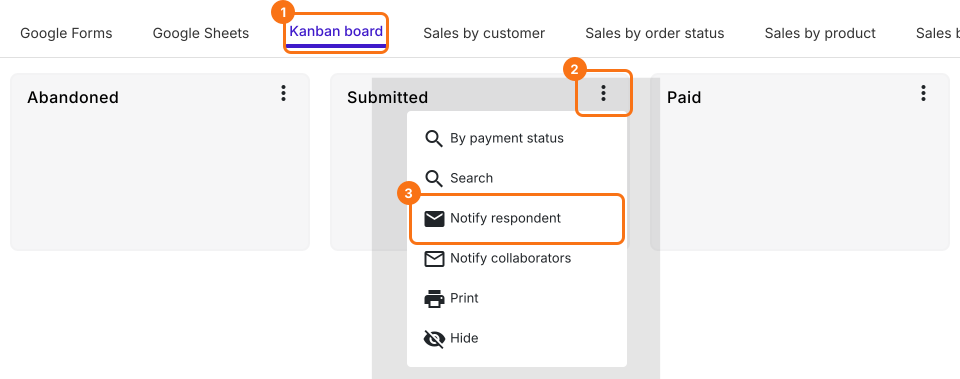
- Click Kanban board, click the ⋮ on Submitted and select Notify respondent
- Email respondent screen will be displayed. Your form's Email question is already selected. Click on the Next button
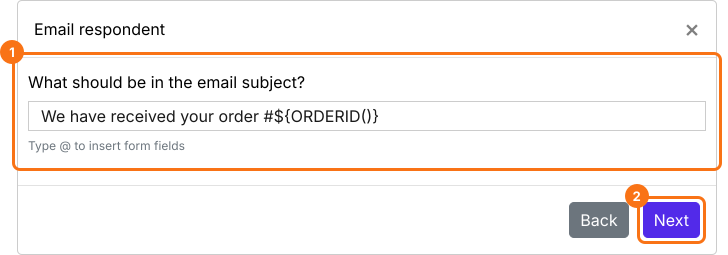
- What should be in the email subject? will be displayed. The subject is already your form's title followed by #${ORDERID()}, which is the order number. You can change the words before it as shown below
- You can customize the email subject using any of the form fields. Type @ in the subject and select the field from the list. It will add the entry id for that form field
- Click on the Next button. Your message is already filled in, so click on the Next button again, click on "Click here", submit a test response with your own email address in the form and click on the YES button
By adding unique fields such as name, email, phone etc in the subject line of email notifications for new orders, your staff team members can easily search and find orders instantly.
By using key details such as amount to be paid, pickup time etc in the subject line of the order confirmation emails, you can make it easy for your users to get more context about the email.
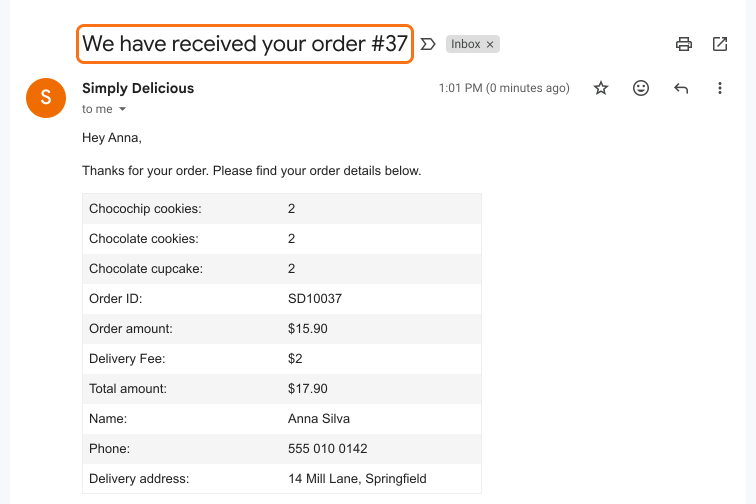
Example order confirmation email with customized subject & order number
Summary
If you cannot tell your orders apart in the inbox, Google Forms will not put the order details in the subject. With Neartail, the subject already has the order number and you can add any other field from the form. Create your order form and complete the steps above.
Last updated: