How to add your logo in the order confirmation email?
This is a common question from small food and retail businesses who want customers to remember who they ordered from. Your order confirmation email should carry your logo. Google Forms sends a plain copy of the answers and a form header image does not appear in that email, so every message looks the same no matter who sends it. With Neartail, you can add your logo to the confirmation email with the image icon in the message editor or the image shortcode. Your customers will see your logo in the email with their order. Even better, your form can carry the same logo, so they see your branding instead of Google's from the form to the email.
Let's start. Create your order form and follow the steps below.
How to get to the message editor?
- On the page that opens, click "Enter your form name". Type your form's name, click Generate and wait about a minute.
- Check the outline it suggests and click Proceed.
- Once you create the form, you will land on the form's "Edit" tab. If it asks "Do you want to preview this form?", click No.

- Click on "Orders" tab

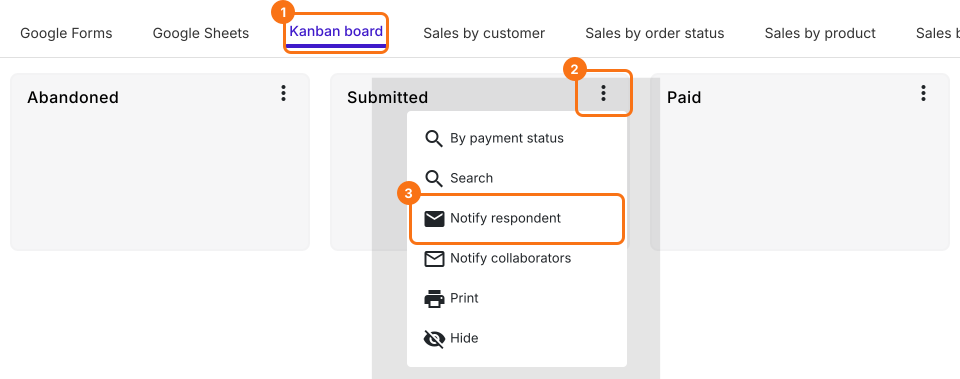
- Click Kanban board, click the ⋮ on Submitted and select Notify respondent
- Email respondent screen will be displayed. Your form's Email question is already selected. Click on the Next button
- Your subject is already filled in. Click on the Next button
Option #1: Use the image option in the message editor
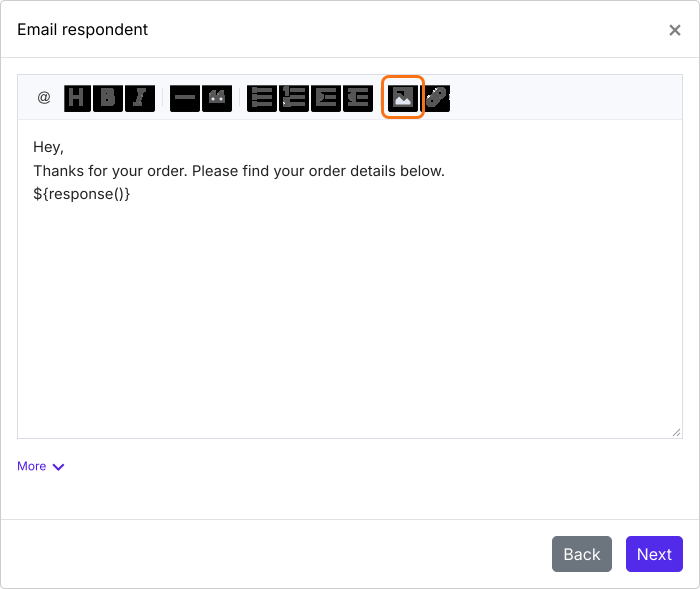
- Click at the top of the message, then click on the image icon in the message editor
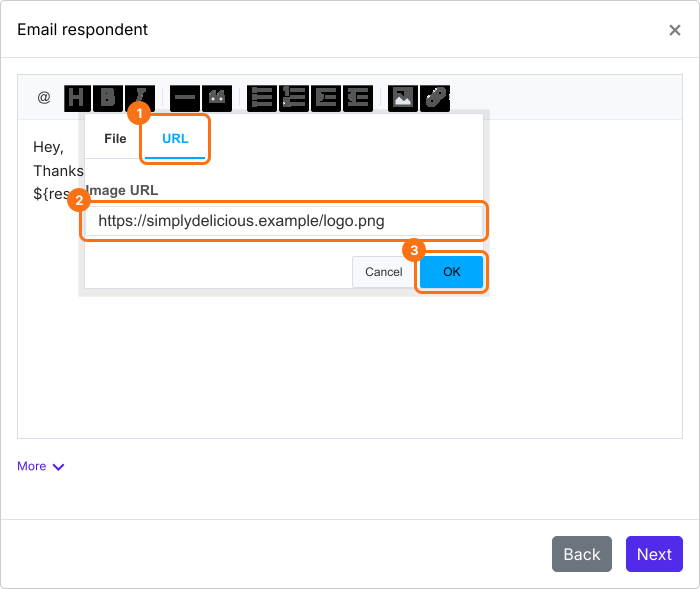
- Insert image popup will be displayed. Click URL, paste the url for the image and click on OK
Option #2: Use the image shortcode
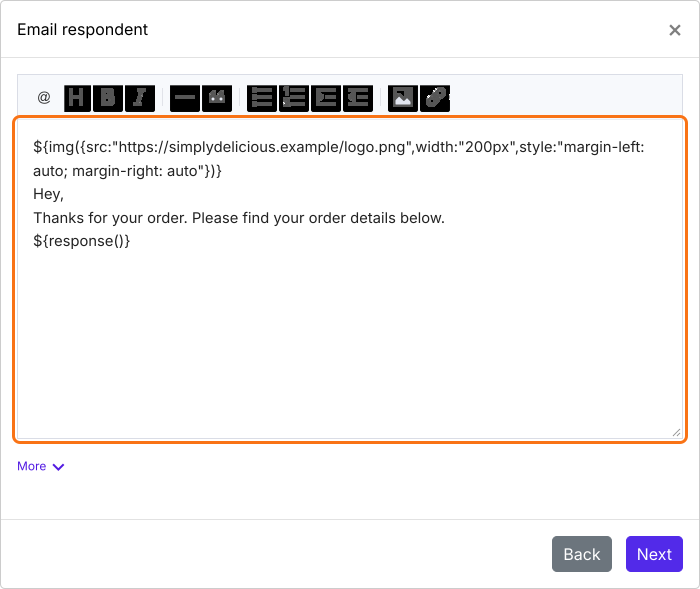
The shortcode allows you to specify the image size and apply styles to the images easily. You just have to replace the url in the below shortcode and include it at the top of the email content to display the image.
${img({src:"https://imageurl...",width:"200px",style:"margin-left: auto; margin-right: auto"})}
- Click on the Next button, click on "Click here", submit a test response with your own email address in the form and click on the YES button if the email arrives
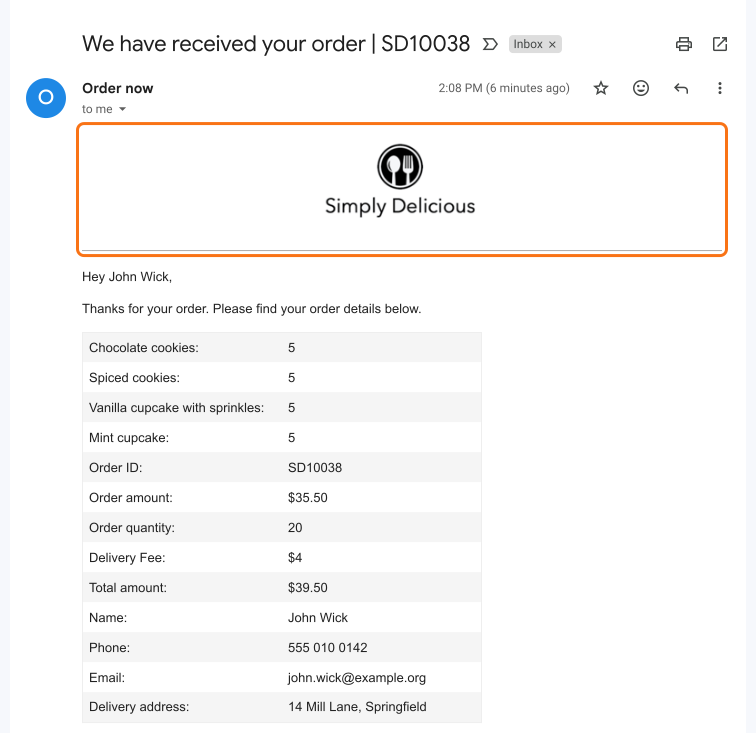
Your customers will see your logo at the top of the confirmation email.
Summary
If you want your order confirmation email to look like it comes from your business, Google Forms cannot add your logo to it. With Neartail, you add the logo with the image icon or the image shortcode. Create your order form and complete the steps above. If you have any questions, write to support.
Last updated: