How to save Google Forms uploads without using your Drive storage?
"Google Forms file upload stopped despite total uploaded files being under 1GB"- Google Docs Editors Community
This is a common question from Google Workspace users whose file uploads have stopped. For example, your job application form asks for a resume and a cover letter and it can stop taking files one day. Every file sent through Google Forms goes into your own Drive. Asking people to email their files instead means matching each one to its application by hand. With Formfacade, you can send each applicant's files to Formfacade's storage, so that your form doesn't depend on your Drive. You will open them from the response or from the links in your Google Sheet. Even better, applicants upload their files with no Google sign in.
Let's start. Create your form and follow the steps below.
1. Create your form
On the page that opens, name your form and click Create form. Check the questions it suggests and click Proceed. You will land on the form's Edit tab. If it asks "Do you want to preview this form?", click No.

2. Check your storage
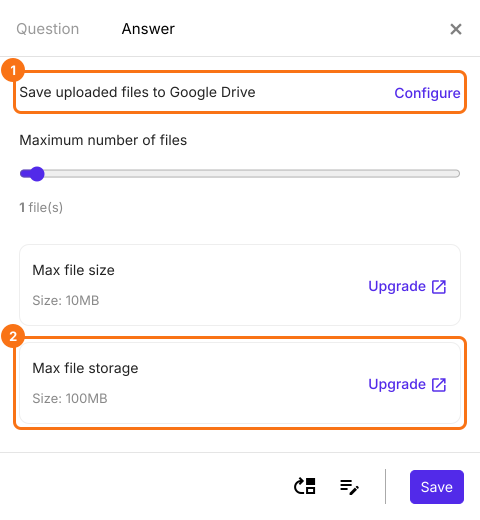
In EDIT, click an upload question, click the gear and open Answer. Max file storage shows your plan's space and files reach Drive only if you click Configure.
3. Applicants add their files
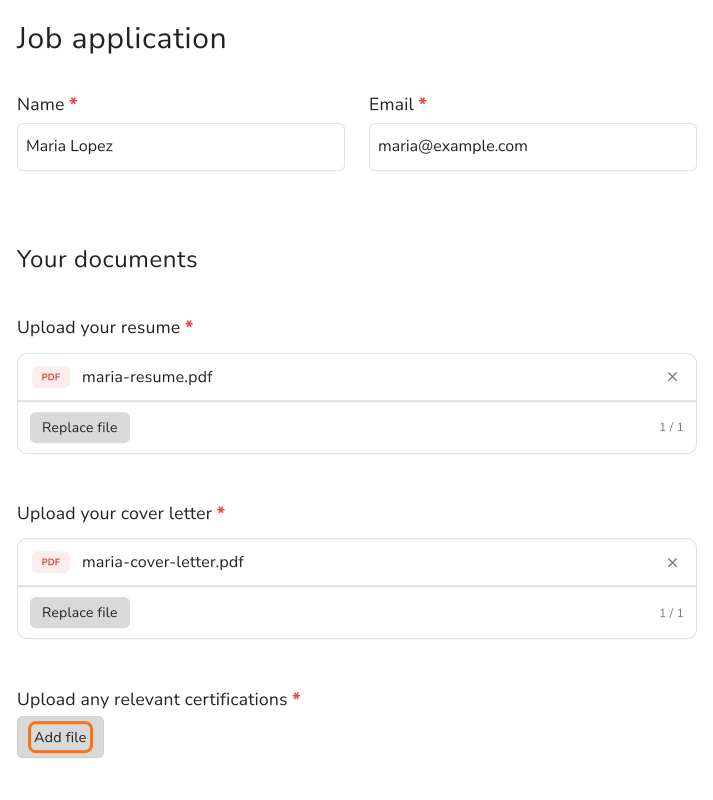
Open SHARE, click Copy and send applicants your form's link. They click Add file and upload with no Google sign-in.
4. Open each applicant's files
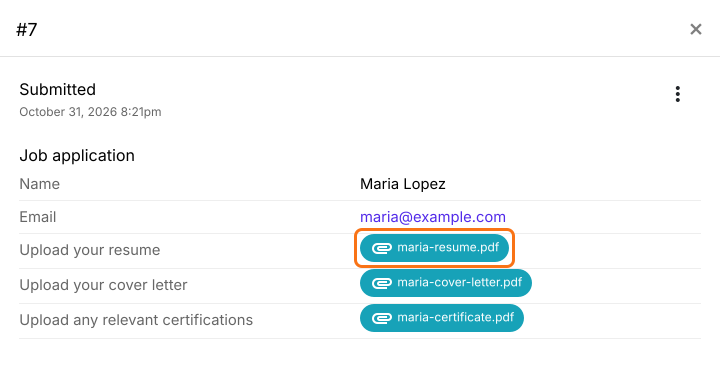
When a response comes in, click on Responses tab, then Kanban board and click a card. Click a file to open it.
5. Find the links in your Google Sheet
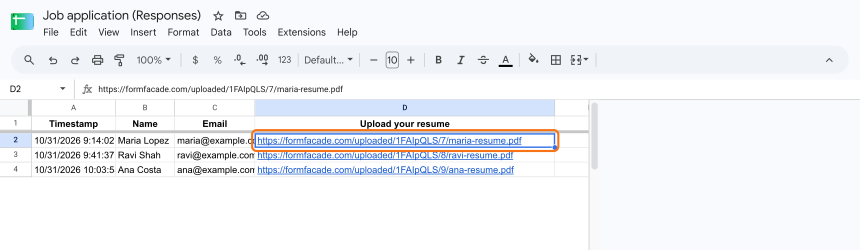
Under Responses, click Google Sheets, Link to Sheets and Proceed. Click View sheets. Each file shows there as a formfacade.com link. The files stay out of your Drive.
Summary
If your application form stops taking files or every upload fills your own Drive, asking people to email files only means more matching by hand. With Formfacade, each applicant's files go to Formfacade's storage and you open them from the response or from the links in your Google Sheet. Create your form and complete the steps above. If you have any questions, write to support.
Last updated: