How to customize the add file button text?
This is a common question from people who use a file upload question for something specific. For example, if you ask for a resume or a photo, the button should say what you want from your users. A button that only says Add file does not tell them what to upload. Google Forms does not let you change the text on its file upload button. With Formfacade, you can change the file upload button text by adding a caption for the upload button. Your users will see your words on the button instead of Add file. Even better, they can upload their file without signing in to Google.
Let's start. Create your form and follow the steps below.
How to change the button text?
- On the page that opens, name your form, click Create form and click Proceed.
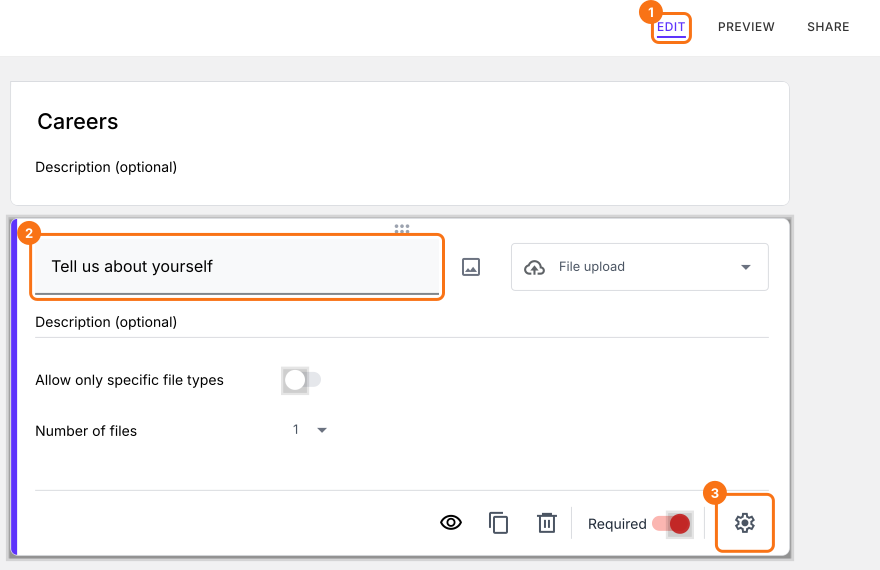
- Once you create the form, you will land on the form's "Edit" tab. If it asks "Do you want to preview this form?", click No.

- In the Edit page, click on the file upload question, then click on the gear icon.
- Field settings screen will be displayed. By default, the question tab will be selected. Click Placeholder, enter the caption for the upload button and click on the Save button.
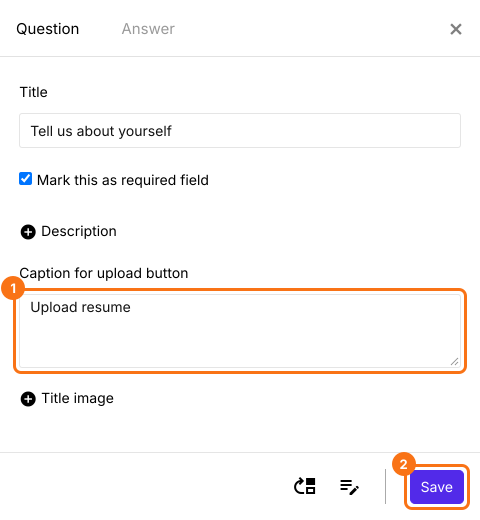
Default "Add file" button text will be replaced with the caption added in the Field settings screen. Form with a customized button text "Upload resume" for file upload question.

Summary
If you want the upload button to say what you need, Google Forms does not let you change it. With Formfacade, you enter a caption for the upload button in the Field settings screen and it replaces the Add file text in your form. Create your form and complete the steps above.
Last updated: