How to add collaborators and enable permissions to access the uploaded files?

"Can't Access Files Uploaded to Forms"- Google Docs Editors Community

This is a common question from Google Workspace users who need someone else to open the files a form collects. For example, you might run a supplier sign-up form and your colleague has to open each tax certificate before the supplier is approved. In Google Forms, they click the file link and get stopped, because they do not have access. Downloading each file and emailing it to them takes time and you have to do it again for every new file. With Formfacade, you can add them as collaborators and they will be able to access the uploaded files. Your colleague clicks the link in the response and the file opens. Even better, your suppliers can upload their files without signing in to Google.

Let's start. Create your form and follow the steps below.

Who can access the uploaded files?

By default, the user who creates the form or uses the SHARE link to collect responses will have access to view and download the uploaded files.
When a user uploads a file and submits the form, you can access the uploaded files using the link in RESPONSES.

How to add collaborators and give permissions to view uploaded files?

  • On the page that opens, name your form, click Create form and click Proceed.
  • Once you create the form, you will land on the form's "Edit" tab. If it asks "Do you want to preview this form?", click No.
  • Click on "Share" tab
The tabs Edit, Preview, Share and Responses, with Share marked
  • Click Add collaborators under More options
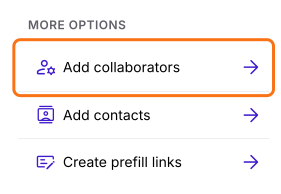
The More options panel on the Share page, with Add collaborators marked
  • Collaborators page will be displayed. Click Add collaborators.
  • Enter the email addresses and click on the Share button to add them as collaborators
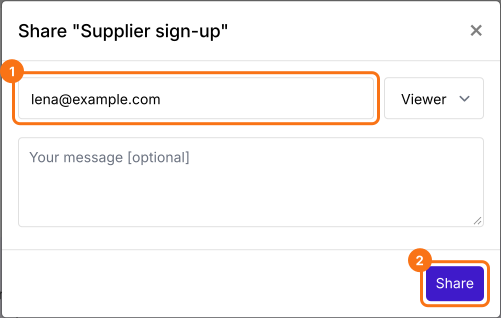
The Share "Supplier sign-up" dialog with lena@example.com typed in and the address box and Share marked
They will get an email inviting them to the form. They can click on the Accept invite button in the email.
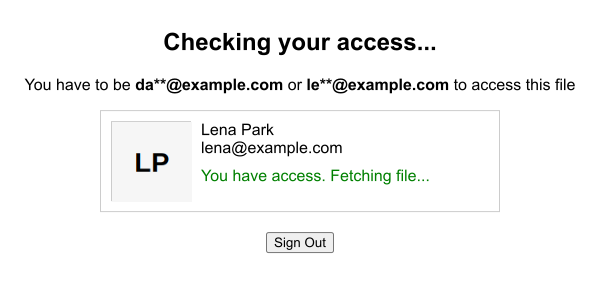
The collaborators will be able to view and download the uploaded files using the link.
The Checking your access page, signed in as lena@example.com, that says You have access. Fetching file...

How to allow anyone with the link to view the uploaded files?
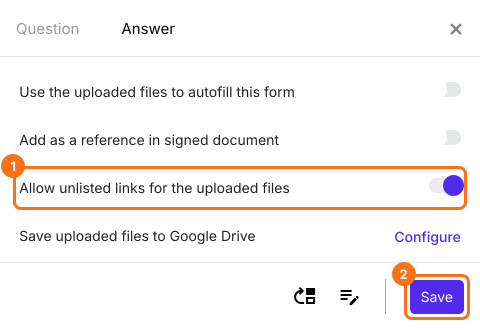
To allow anyone with the link to view the uploaded files without signing in, click on "Edit" tab, click on the file upload question, then click on the gear icon. Field settings screen will be displayed. Select the answer tab. Enable Allow unlisted links for the uploaded files and click on the Save button.
The Answer tab of a file upload question with Allow unlisted links for the uploaded files turned on and marked and the Save button marked

Summary

If your team clicks a file link and cannot open it, downloading each file and emailing it to them takes time. With Formfacade, you add them as collaborators or allow unlisted links for the uploaded files and they can open each file using the link. Create your form and complete the steps above. If you have any questions, write to support.

Last updated: