How to view and download uploaded files?

"rename files uploaded in a google form & move them in a unique folder"- Google Docs Editors Community

This is a common question from Google Workspace users once files start coming in. For example, your application form asks for each person's name and CV and you need to find one person's CV without opening every file. In Google Forms, uploaded files are links in a list, with no names you can sort by. Renaming them and sorting them into folders by hand takes hours and a script is one more thing to look after. With Formfacade, the url of the uploaded file is recorded as a response in the RESPONSES tab and the linked Google Sheets. The files are hosted on our servers. You can access the uploaded files using that link. Even better, each link sits in the same row as that person's name, so you can sort your Sheet and open the one you want.

Let's start. Create your form and follow the steps below.

How to add a response with a file?

  • On the page that opens, name your form, click Create form and click Proceed.
  • Once you create the form, you will land on the form's "Edit" tab. If it asks "Do you want to preview this form?", click No.
  • Click on "Share" tab
The tabs Edit, Preview, Share and Responses, with Share marked
  • Click Copy and open the link
  • Fill the form, click Add file and add your file. Click Done and click Submit.

Formfacade RESPONSES tab

  • Click on "Responses" tab
The tabs Edit, Preview, Share and Responses, with Responses marked
  • Select Kanban board
  • Click on the response in Submitted
  • Click on the link to view the file. It opens in your browser, where you can download it.
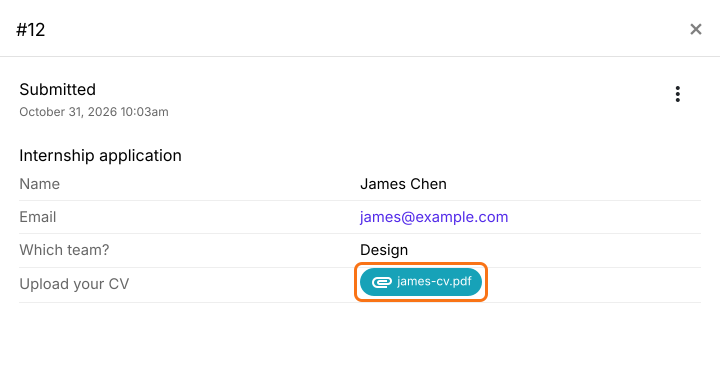
James Chen's response, number 12, with his name, email and team and the file james-cv.pdf marked next to Upload your CV

Google Sheets

  • In the RESPONSES tab, select Google Sheets
  • Click Link to Sheets and click Proceed
  • Click View sheets
The form responses will be synced to Google Sheets. You can click on the link to view the uploaded file. If you have enabled multiple file upload for a question, the response will be a list of urls separated by comma.
The formula bar and cells of the linked Google Sheet, with a column of file links and a cell with two links separated by a comma marked

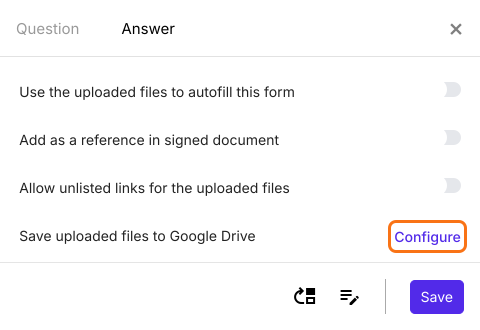
Save uploaded files to Google Drive
To save the uploaded files to your Google Drive, click on "Edit" tab, click on the file upload question, then click on the gear icon. Field settings screen will be displayed. Select the answer tab. Click on Configure next to Save uploaded files to Google Drive, click Proceed and connect your Google Drive.
The Answer tab of a file upload question with the Configure link marked next to Save uploaded files to Google Drive
To add the name of the user to the file name, click on the configure key fields icon in the last "After page" row. It says "After page 1" on a form with one page.
The After page 1 row with the configure key fields icon marked
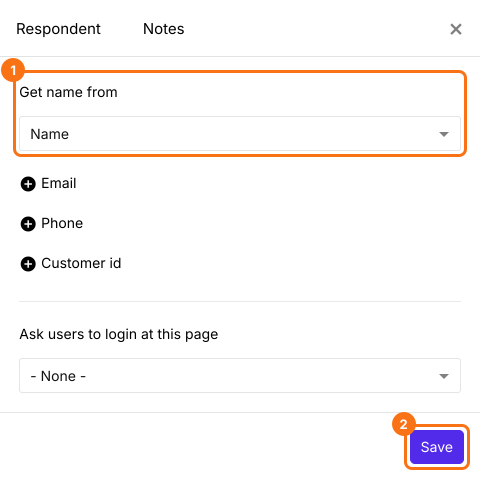
Respondent settings page will be displayed. Select the name field in Get name from and click Save. If your form has no name question, add one first.
The Respondent tab with Name selected in Get name from, and that list and Save marked
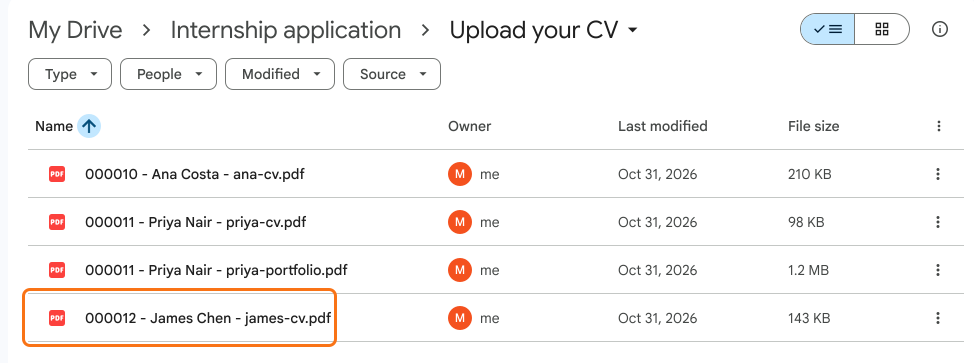
Each new file will be saved in your Google Drive with the response number and the name of the user in front of the file name, so you can sort the files and find them by name.
A Google Drive folder called Upload your CV with files named 000010 - Ana Costa - ana-cv.pdf, 000011 - Priya Nair - priya-cv.pdf, 000011 - Priya Nair - priya-portfolio.pdf and 000012 - James Chen - james-cv.pdf, with the last marked

Summary

If you need to find one person's file, a list of links with no names does not help and renaming files by hand takes hours. With Formfacade, each response links to its files and the files you save to Google Drive carry each person's name. Create your form and complete the steps above. If you have any questions, write to support.

Last updated: