How to submit Google Forms responses to WhatsApp on desktop
"I need to find a way to track my responses on WhatsApp"- Google Docs Editors Community
This is a common question from Google Forms users who run their work on WhatsApp. You check your chats all day but not your form responses, so a new response can sit there unseen. Google Forms has no option to send a response to WhatsApp, so you copy the details across by hand. With Neartail, you can configure your WhatsApp number and then share the form link with your users. When they submit the form on their computer, they scan a QR code or open WhatsApp on that computer and send you their response as a message. Even better, the responses will also be collected on your Google Forms, so you can sync them to Google Sheets.
Let's start. Create your form and follow the steps below.
How to send responses to your WhatsApp?
Your form does not send responses to WhatsApp until you do this.
- On the page that opens, click "Enter your form name". Type your form's name, click Generate and wait about a minute.
- Check the outline it suggests and click Proceed.
- Once you create the form, you will land on the form's "Edit" tab. If it asks "Do you want to preview this form?", click No.
- If you imported a Google Form, it makes a copy of your form. If it says "Your form is private or protected", click Next and give access or publish your form in Google Forms and paste that link. Select your currency and click Continue. When it says "Your order form is ready", click Preview your form, then Edit form.

- Click on each product and check its name and price, because a generated product can have no name and a price of 0.
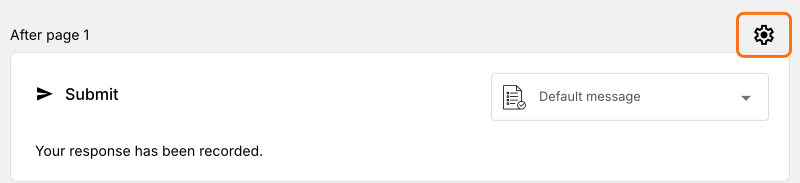
- Click on the gear icon in the last After page row above the Submit button.
- Click On submit and select Submit response to WhatsApp.
- Under Route to this number, enter your WhatsApp number with your country code and click Save.
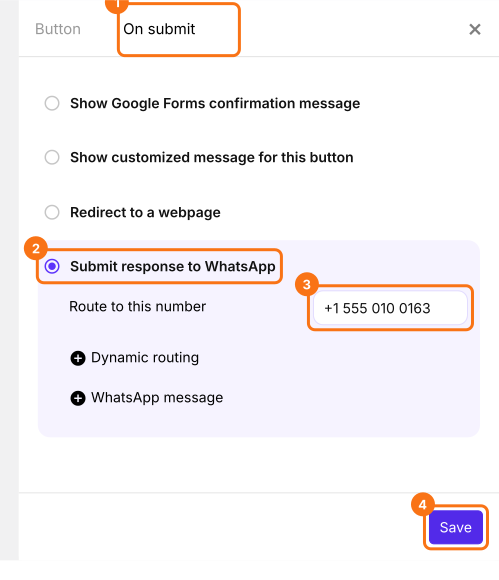
Neartail does not check this number, so make sure it is correct.
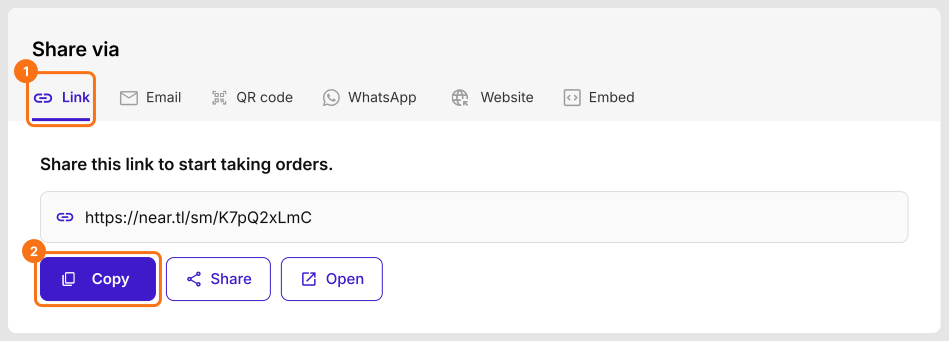
- Click on "Share" tab. Click Link and copy the form link. This is the link your users will open.
How to use Neartail Google Forms on your computer?
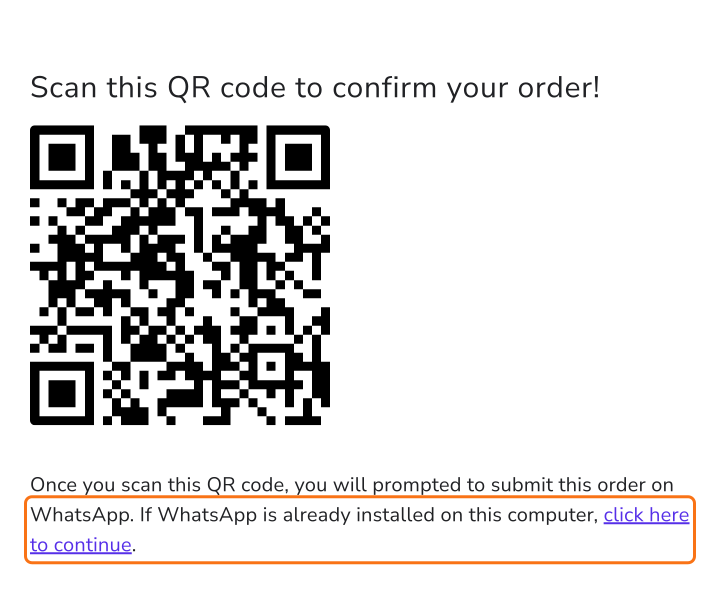
When a user opens the form link on their desktop computer, fills the form and clicks on the Submit button, it shows a QR code. When they scan it or click the link below it, they can send the pre-composed message (form response) to the form creator's WhatsApp number.
- Click on the form link to open your customized Google Form.
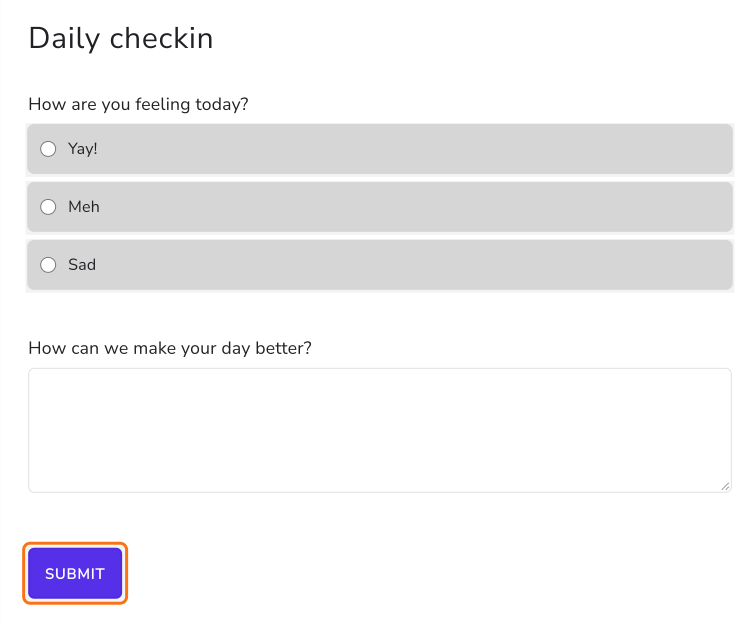
- Fill in the details and click on the Submit button.
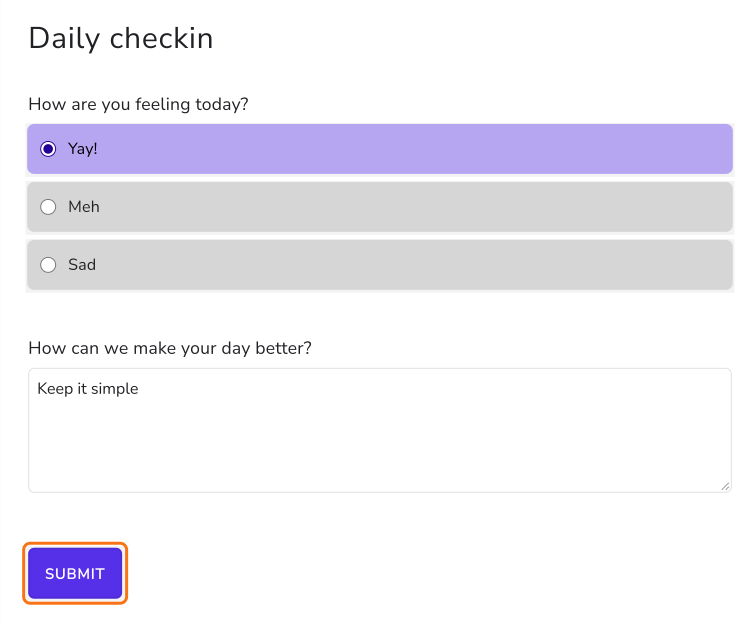
- It will show "Scan this QR code to confirm your order!". Scan it with your phone. If WhatsApp is already installed on this computer, click on "click here to continue" below the code.
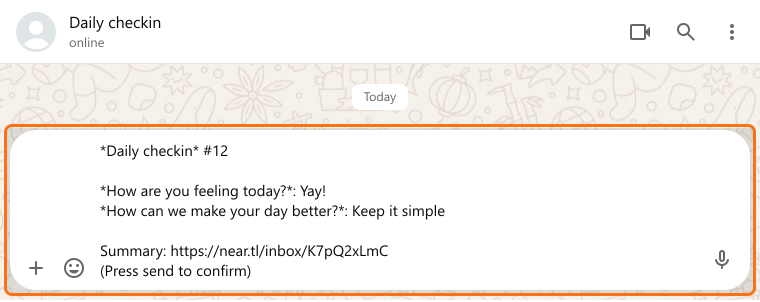
- Your form response will be pre-filled as a WhatsApp message that can be sent by clicking on the "Continue to chat" button.
- If you haven't installed the WhatsApp desktop app, it will ask you to download WhatsApp or use WhatsApp web. Click on the WhatsApp web link.
- Your form response will be automatically created as a message that can be sent to the form creator by just clicking on the Send button.
Summary
If you work from WhatsApp, Google Forms cannot send a response there. With Neartail, your users fill the form on their computer and send the response to your WhatsApp as a message. Create your form and complete the steps above. If you have any questions, write to support.
Last updated: