Likert scale
This is a common question from people who ask how customers feel about their product. A yes or no answer does not tell you much. You need a scale from satisfied to dissatisfied, repeated for each topic. Google Forms has no question type for this and repeating the same answers in many separate questions makes the form long. With Formfacade, you can create it with a multiple choice grid or a multiple choice question in the form's "Edit" tab and your customers can answer every topic in one place. Even better, the survey will have your own branding instead of Google's, so it looks like it comes from you.
Let's start. Create your form and follow the steps below.
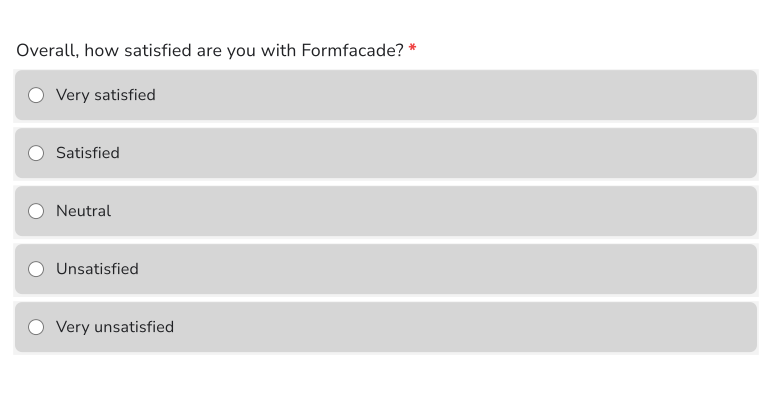
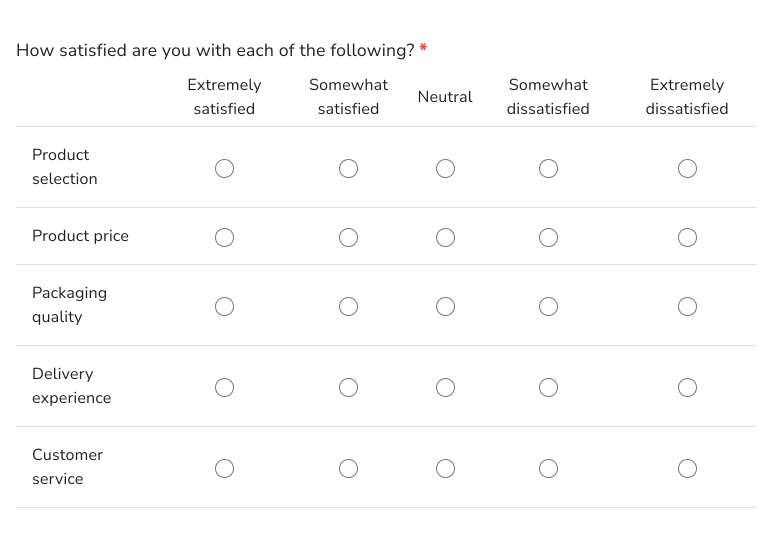
Likert scale questions can be used to measure people's attitudes and opinions to any statement or topic. You can create a Likert scale question using multiple choice or multiple choice grid questions. Here's an example below.
How to create a Likert scale question?
- On the page that opens, name your form, click Build form and click Proceed. It can take about a minute.
- You will land on the form's "Preview" tab.
- Click on "Edit" tab

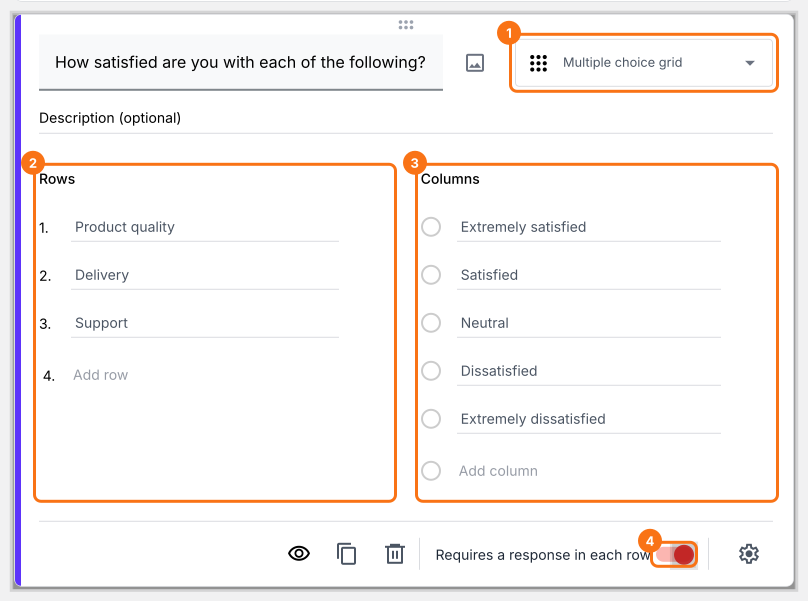
Google Forms does not have a separate question type for Likert scale. You can use a multiple choice grid with require a response in each row option enabled to create a Likert scale question.
- Click on the + icon (Add field) in the toolbar on the right and enter your question
- Select Multiple choice grid in the question type list
- Add statements or questions in Rows
- Add Likert scale as answer choices in Columns
- Enable Requires a response in each row toggle button as shown below
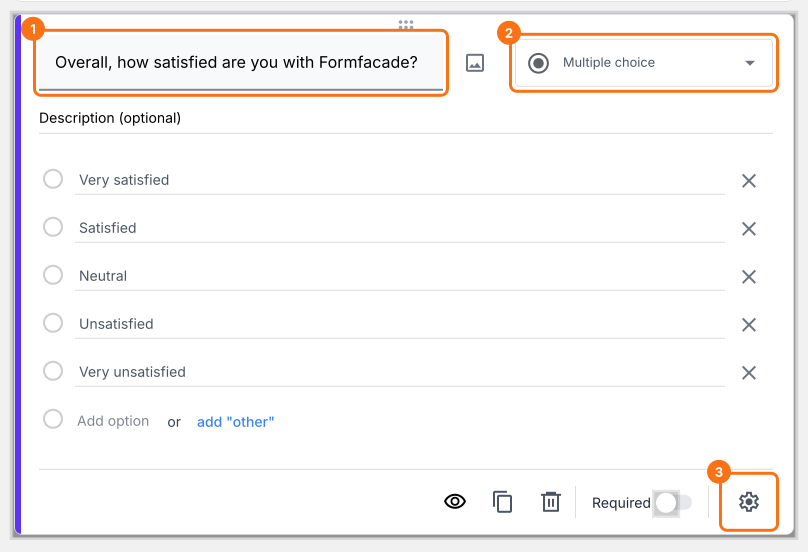
You can also use a multiple choice question with Likert scale as answer choices.
- Click on the + icon (Add field) in the toolbar on the right
- Select Multiple choice in the question type list
- Type the first answer choice in the first box, then click Add Option and type the next one. Do this for each answer choice.
- Enable Required toggle button to make this a mandatory question as shown below
Summary
If you want to measure people's attitudes and opinions, Google Forms does not have a Likert scale question. With a multiple choice grid or a multiple choice question in Formfacade, you add the Likert scale as the answer choices and you can compare the answers for each topic. Create your form and complete the steps above.
Last updated: