How to accept online payments using Yoco?
This is a common question from sellers in South Africa who use Yoco to take card payments. You would like your customers to pay when they place an order. Google Forms cannot take a card or connect to Yoco. So you send each customer a payment link after the order and check later who has paid. With Neartail, you can accept online payments using Yoco in your form. Your customers pay by card when they place the order, so you don't have to send a link afterwards. Even better, the form will have your own branding instead of Google's, so your customers know who they are paying.
Let's start. Create your form and follow the steps below.
Yoco API keys
You can get your API keys by logging into your Yoco Mobile here. Alternatively, login to your Yoco business portal > go to the Sales tab > click on the Payment gateway tile > you can use the live public key and secret key to start accepting real transactions from customers.
Setup Yoco payments
- On the page that opens, click "Enter your form name". Type your form's name, click Generate and wait about a minute.
- Check the outline it suggests and click Proceed.
- Once you create the form, you will land on the form's "Edit" tab.

- If it asks "Do you want to collect payment on form submit?", click Yes.
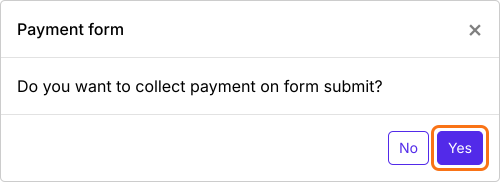
If you imported a Google Form, it makes a copy of your form and it will not ask. If it says "Your form is private or protected", click Next and give access or publish your form in Google Forms and paste that link. Select your currency and click Continue. When it says "Your order form is ready", click Preview your form, then Edit form. Scroll down to Payments disabled at the end of the form and click Enable. Click Enable again in the panel that opens.

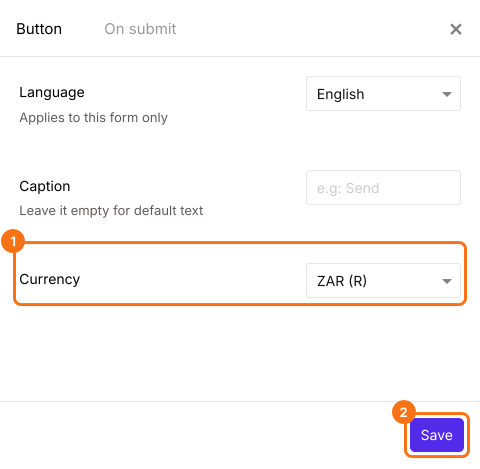
Yoco is listed only when your form is in ZAR. If you do not see it, close the Payments settings page and click on the gear icon in the After payment row, the last row above the Submit button. Select ZAR in Currency and click Save. The form will reload. If it asks "Do you want to collect payment on form submit?" again, click Yes. Otherwise click Edit in the Payments row. Change the currency before you turn on a payment option, because an option you turned on stays on in the new currency.
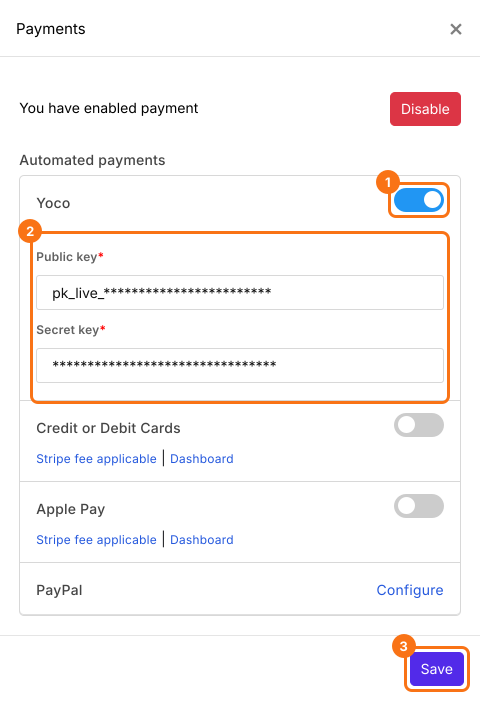
- Payments settings page will be displayed. Yoco payment option will be listed under Automated payments. Click on the toggle button to enable Yoco payments, enter the public and secret key and click Save.
- Check your products. If the form has products you do not need, click on the product and click on the delete icon at the bottom of its card. If a product has no title, the wrong title or a price of 0, change it in the card.
Summary
If you take card payments with Yoco, a Google Form cannot connect to it. With Neartail, you enable Yoco in the Payments settings and enter your public and secret key and your customers pay when they place an order. Create your form and complete the steps above. If you have any questions, write to support.
Last updated: