How to show a summary of the products ordered by the user?
This is a common question from small shops with long product lists. For example, if your form has many products or products spread over several pages, your customers lose track of what they picked. They want to see it all in one place before they place the order. A Google Form has no such step, so mistakes reach you after the order is in. With Neartail, you can use the SUMMARY function to show the products they picked, so they can review them before they place their order. Even better, the TEXTSUMMARY function records the same summary in your responses, so you can read the whole order in one place.
Let's start. Create your order form and follow the steps below.
How to show a summary of the products ordered by the user?
- On the page that opens, click "Enter your form name". Type your form's name, click Generate and wait about a minute.
- Check the outline it suggests and click Proceed.
- Once you create the form, you will land on the form's "Edit" tab. If it asks "Do you want to preview this form?", click No.

- Your form already has a Review and place order section. Click on the section, then click the ⚙️ icon.

Use SUMMARY function to show the list of products ordered by the user
You can use the SUMMARY function to show the order summary to the users. The syntax for the SUMMARY function is:
SUMMARY(currency)
where
- currency - identifier to find the price in the description/answer choices. The currency can be a symbol or text, but it has to exactly match the format used in the description/answer choices.
Note: The summary function returns a html. So it must be used in the description as a string literal. Any function that you write in the description must be written between ${ ... }
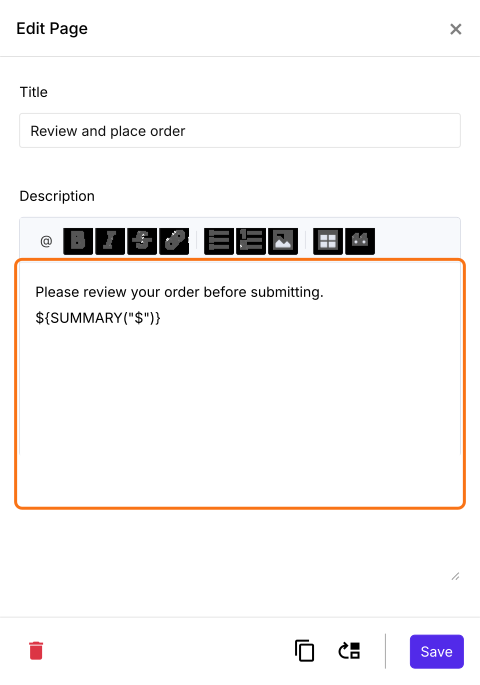
If the currency used in the form is $, then the summary formula would be ${SUMMARY("$")}
If the currency used in the form is €, then the summary formula would be ${SUMMARY("€")}
If the currency used in the form is ₹, then the summary formula would be ${SUMMARY("₹")}
Similarly, you can write the summary formula for any currency.
- Edit Page screen will be displayed. The description has the ${BILL()} formula. Replace it with the ${SUMMARY("$")} formula as shown below and click Save. Use the currency symbol your prices have, such as ${SUMMARY("€")}. With another symbol or with nothing in the brackets, it shows nothing on the form.
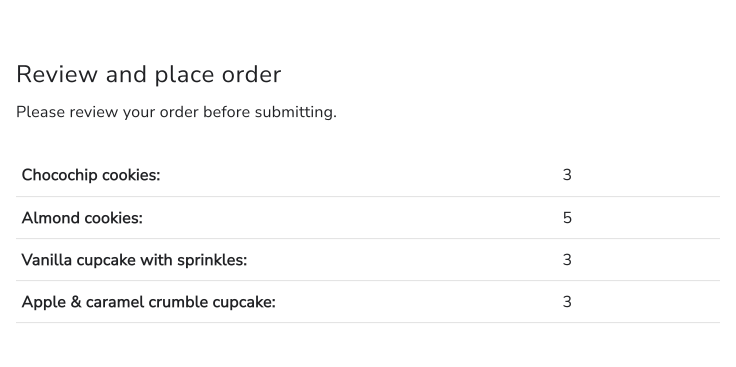
The summary of products ordered by the user will be displayed as shown below. This will enable users to review their order before submitting it for processing.
How to show an order summary and record it in the responses?
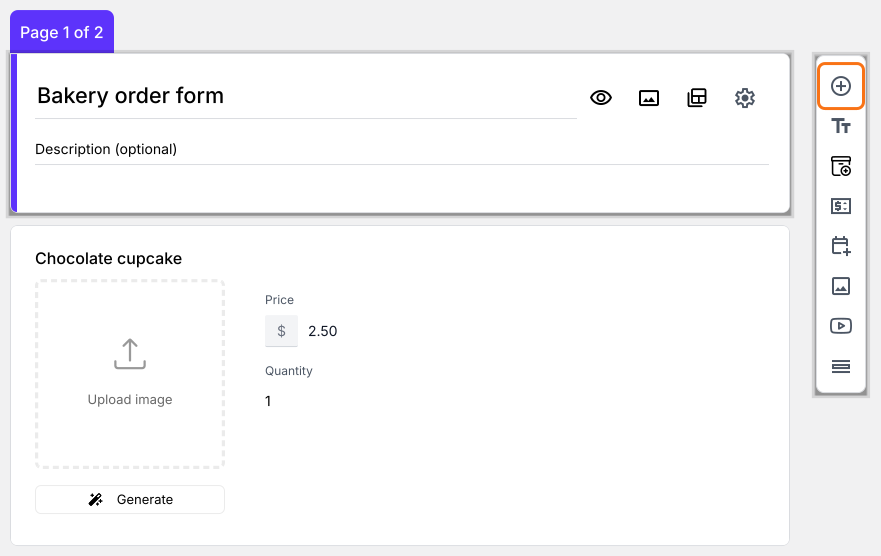
- Click on the Order Quantity question, then click Add field in the toolbar on the right
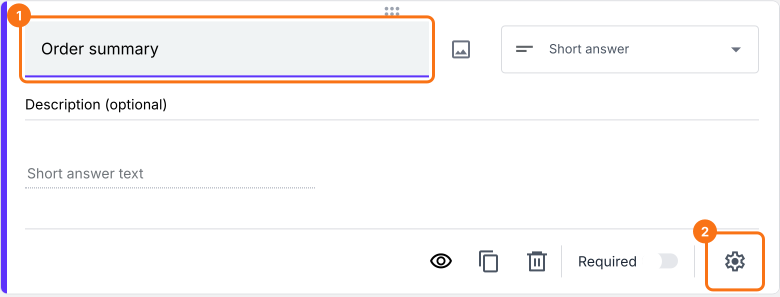
- New question will be displayed. Enter Order summary as its title and change the question type to Paragraph in its list
- Click the ⚙️ icon
Use TEXTSUMMARY function to show the order summary and also record it in the responses
You can use the TEXTSUMMARY function to show the order summary. Unlike the SUMMARY function, this returns the summary as text. The syntax for the TEXTSUMMARY function is:
TEXTSUMMARY(currency)
where
- currency - identifier to find the price in the description/answer choices. The currency can be a symbol or text, but it has to exactly match the format used in the description/answer choices.
If the currency used in the form is $, then the summary formula would be TEXTSUMMARY("$")
If the currency used in the form is €, then the summary formula would be TEXTSUMMARY("€")
If the currency used in the form is ₹, then the summary formula would be TEXTSUMMARY("₹")
Similarly, you can write the summary formula for any currency.
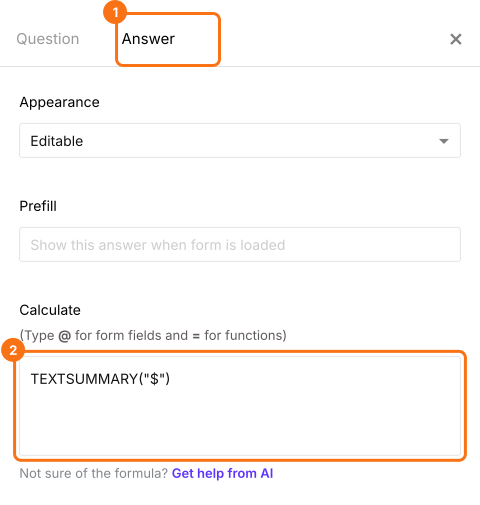
- Field settings screen will be displayed. Select the "Answer" tab. Write the TEXTSUMMARY function in the Calculate option as shown below and click Save. Use the currency symbol your prices have
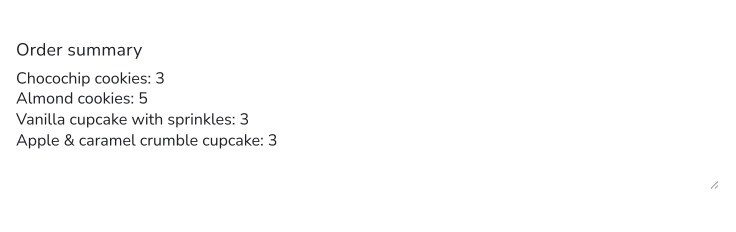
The summary of products ordered by the user will be displayed as shown below. This summary will also be recorded when users submit the form.
Summary
If your customers want to see what they picked, a Google Form cannot list it for them. With Neartail, you add the SUMMARY function to a description and your customers review the products they ordered before they place the order. Create your order form and complete the steps above. If you have any questions, write to support.
Last updated: