How to restrict the files that users can upload in the form?
"I need people to upload .js files through my form."- Google Docs Editors Community
This is a common question from Google Workspace users who need one kind of file. For example, if you teach a coding class, each student has to hand in a .js file and anything else cannot be marked. Google Forms only lets you pick from its own list of file types and .js is not on it. Asking students to send the right file again takes time you do not have. With Formfacade, you can accept only specific file types by adding the list of extensions for the acceptable file types for the file upload question. Your students will only be able to upload the kind of file you asked for. Even better, they can do it without signing in to Google.
Let's start. Create your form and follow the steps below.
How to restrict the file types?
- On the page that opens, name your form, click Create form and click Proceed.
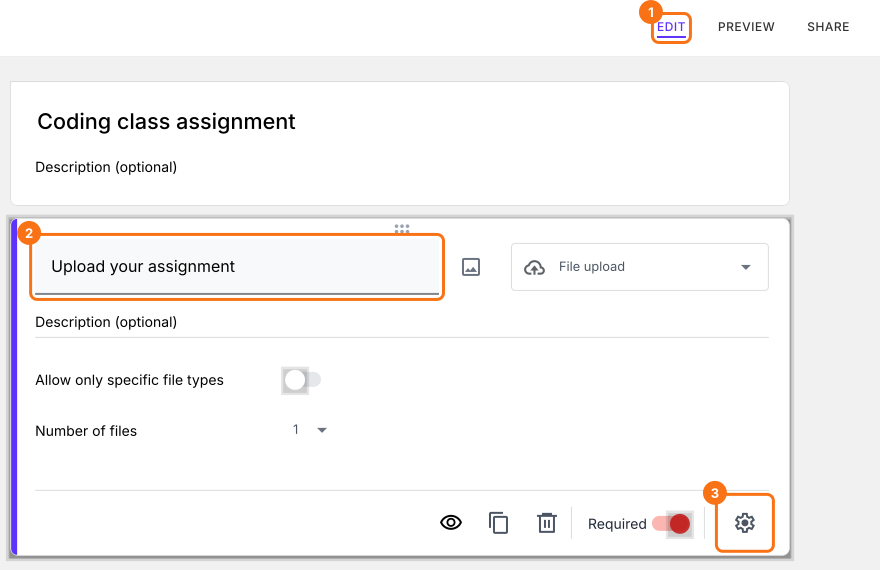
- Once you create the form, you will land on the form's "Edit" tab. If it asks "Do you want to preview this form?", click No.

- In the Edit page, click on the file upload question, then click on the gear icon.
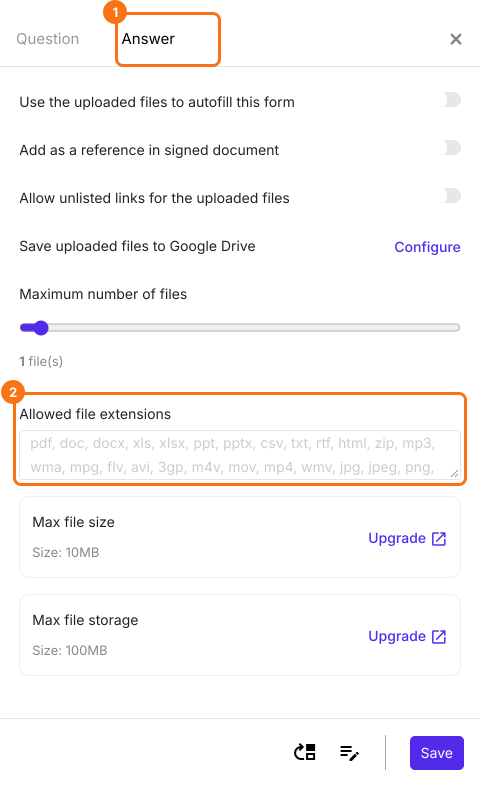
- Field settings screen will be displayed. Select the answer tab. By default, file upload accepts the following file types: pdf, doc, docx, xls, xlsx, ppt, pptx, csv, txt, rtf, html, zip, mp3, wma, mpg, flv, avi, 3gp, m4v, mov, mp4, wmv, jpg, jpeg, png, gif
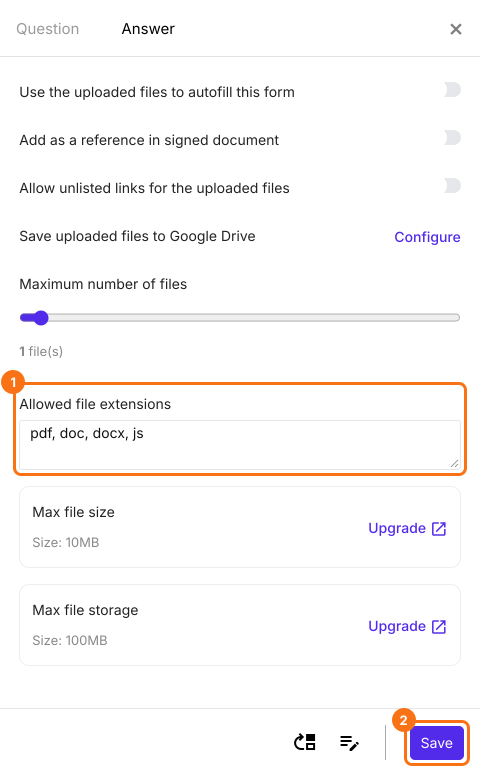
- To restrict the file types that users can upload, add the extensions of the acceptable file types separated by commas as shown below and click on the Save button. For example, you can add the extensions pdf, doc, docx to accept only these three file types. For a coding class, add js as well.
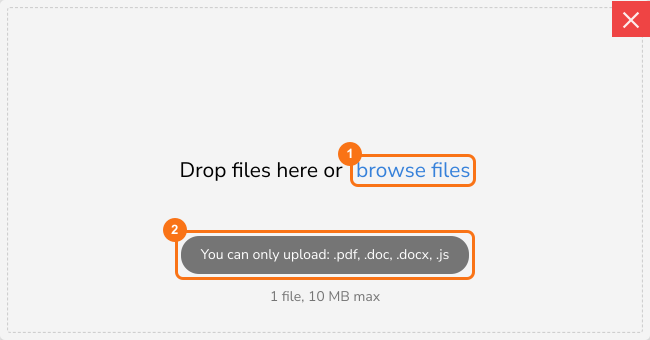
When the user clicks on browse files, only the accepted file types can be selected. Users will be able to upload files with accepted extensions that do not exceed the max file size limit.
How to make the file upload required and set the number of files?
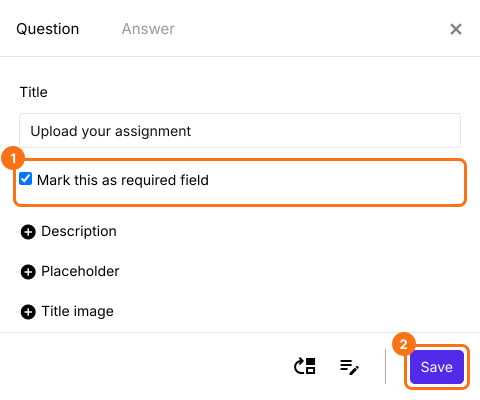
To make the file upload required, select the question tab in the Field settings screen, check Mark this as required field and click on the Save button.
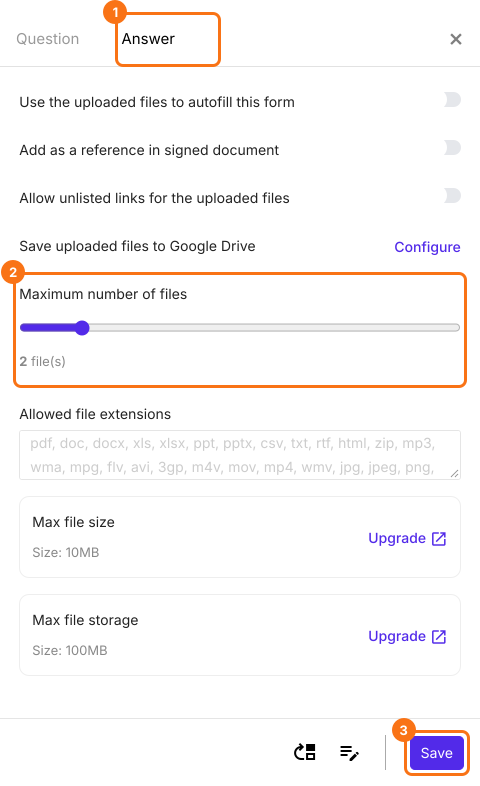
To set the number of files that users can upload, select the answer tab. Use the slider scale to change the maximum number of files allowed and click on the Save button.
Summary
If you need one kind of file, a wrong upload means asking people to send it again and Google Forms only offers its own list of file types. With Formfacade, you add the extensions of the acceptable file types and set the number of files and users can only upload those files. Create your form and complete the steps above. If you have any questions, write to support.
Last updated: