How to customize the subject in Google Forms email notifications?
This is a common question from Google Forms users who get an email for every response. All of them arrive with the same subject, so when a customer writes back or a collaborator needs to find one response, they have to open each email. Google Forms notification emails have a fixed subject and you cannot change it. With Formfacade, you can customize the subject line using form responses. Add the entry#id for the form field(s) in the subject and it will show the response filled by the user. Your inbox will show whose response each email is. Even better, the answers are in the email too, so nobody has to open the form to read them.
Let's start. Create your form and follow the steps below.
How to customize the email subject?
- On the page that opens, name your form, click Create form and click Proceed.
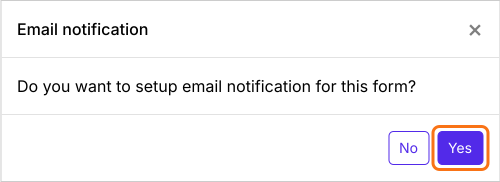
- You will land on the form's "Edit" tab, with the "Email notification" dialog open. It asks "Do you want to setup email notification for this form?". Click Yes.
- A new tab will open on the Kanban board in the "Responses" tab, with the "Email respondent" box open.
- Check the email address of the respondent and click Next
- Type @ in the subject. Select the required form field from the list. It will add the entry id for that form field.
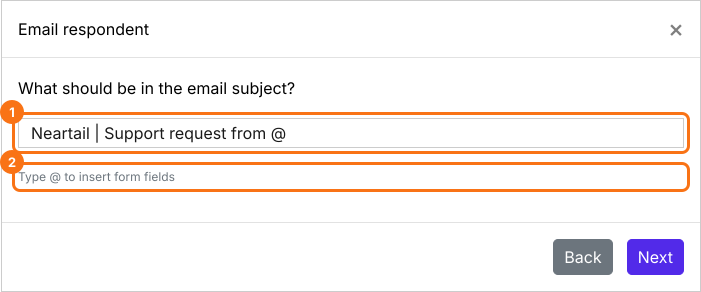
- The entry id will be added in the subject as shown below.
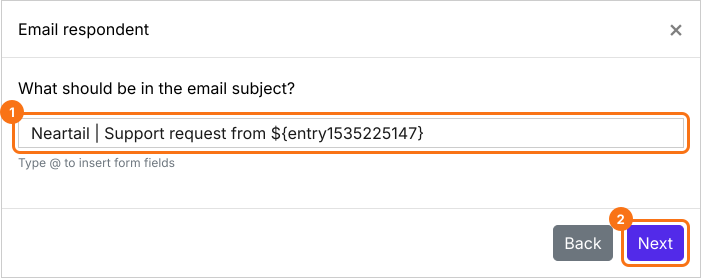
- Click Next on the subject and on the message
- Click on "Click here" to open your form in a new tab. Fill it with your own email address and submit it. If you receive the email, click on the YES button to complete email notifications setup
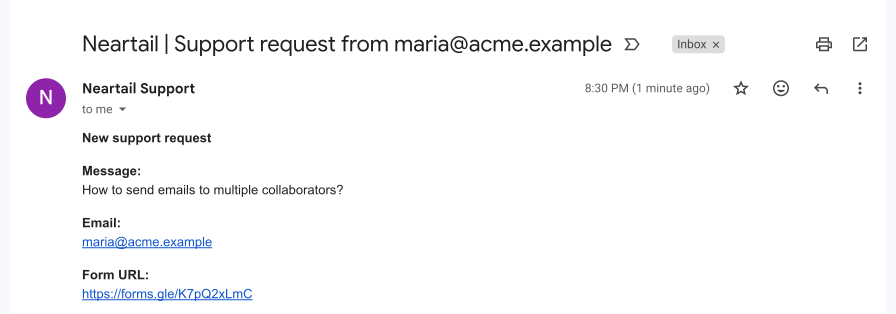
Example email notification with customized subject using form responses.
Why add form fields to the subject?
By adding unique fields such as name, email, phone etc in the email notifications subject, collaborators can easily search and find responses instantly.
By using key details such as amount to be paid, pickup time etc in the subject line of the response receipts, you can make it easy for your users to get more context about the email.
For example, we have added two unique identifiers in the subject line so that we can easily know which customer has sent the support message and the addon that the user needs help with.

Summary
If every notification email has the same subject, it is hard to find a response later. With Formfacade, you add the entry#id for the form field in the subject and it will show the response filled by the user. Create your form and complete the steps above. If you have any questions, write to support.
Last updated: