How to modify styles using css in a Google Form
This is a common question from people who were asked to make a form look like their organization's design. The theme options in Google Forms only take you so far. You can change the colors and the fonts, but you cannot move the questions into two columns, change the title bar or adjust the spacing. Your form still looks like a Google Form. With Formfacade, you can change the colors, fonts and alignment of the questions to match your website theme and change the layout of your form to two-column or even four-column. Even better, you can add your own CSS to adjust the rest.
Let's start. Create your form and follow the steps below.
The need:
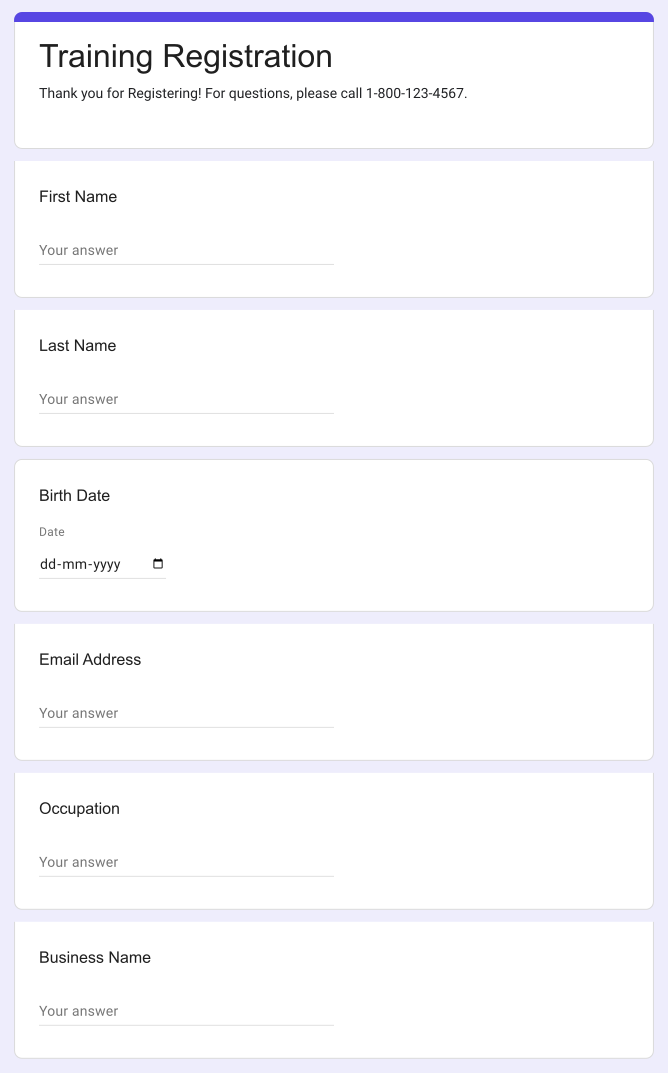
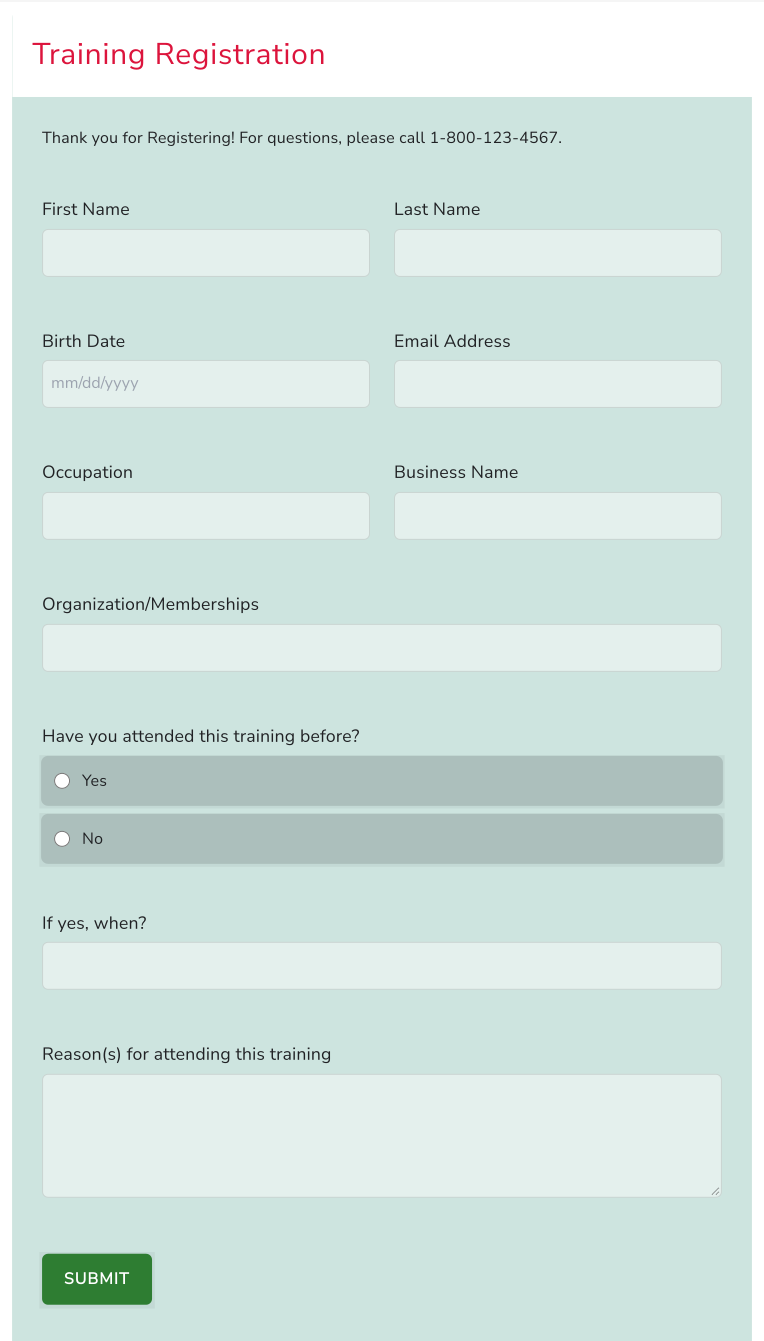
In the time of COVID-19 crisis, Centre of Small & Medium Enterprises are hosting regular training programs online to make SMEs prepare themselves and their employees for the safety measures when they reopen businesses. The center, envisioned to create neat and simple training registration form like this.

The challenge:
Google Forms, by default, did not offer them to change the theme and font color beyond some extent. The standard UI and the layout could not be altered much to match the style they wanted.
The solution:
Formfacade helps them to design this above Google Form look like what they envisioned.
I will walk you through the transformation of the form - with a detailed step-by-step guide. Join me below in customizing and adding CSS to the form elements to match the style.
Step 1: Preparing the form for customization
- On the page that opens, name your form, click Build form and click Proceed. It can take about a minute.
- You will land on the form's "Preview" tab.

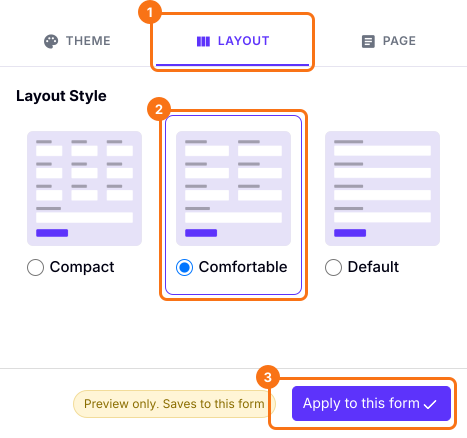
2. Click on the "LAYOUT" tab on the side bar and select "Comfortable" to change the layout to 2-column. Click on "Apply to this form".
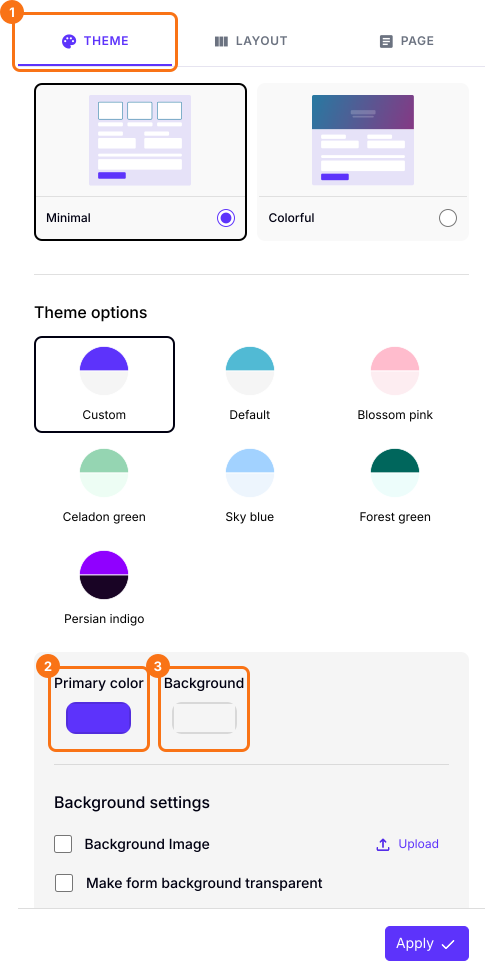
3. On the same side bar, click on the "THEME" tab to change the colors for the form. The preview will change at once. The "Apply to all forms" button applies the colors to all your forms.
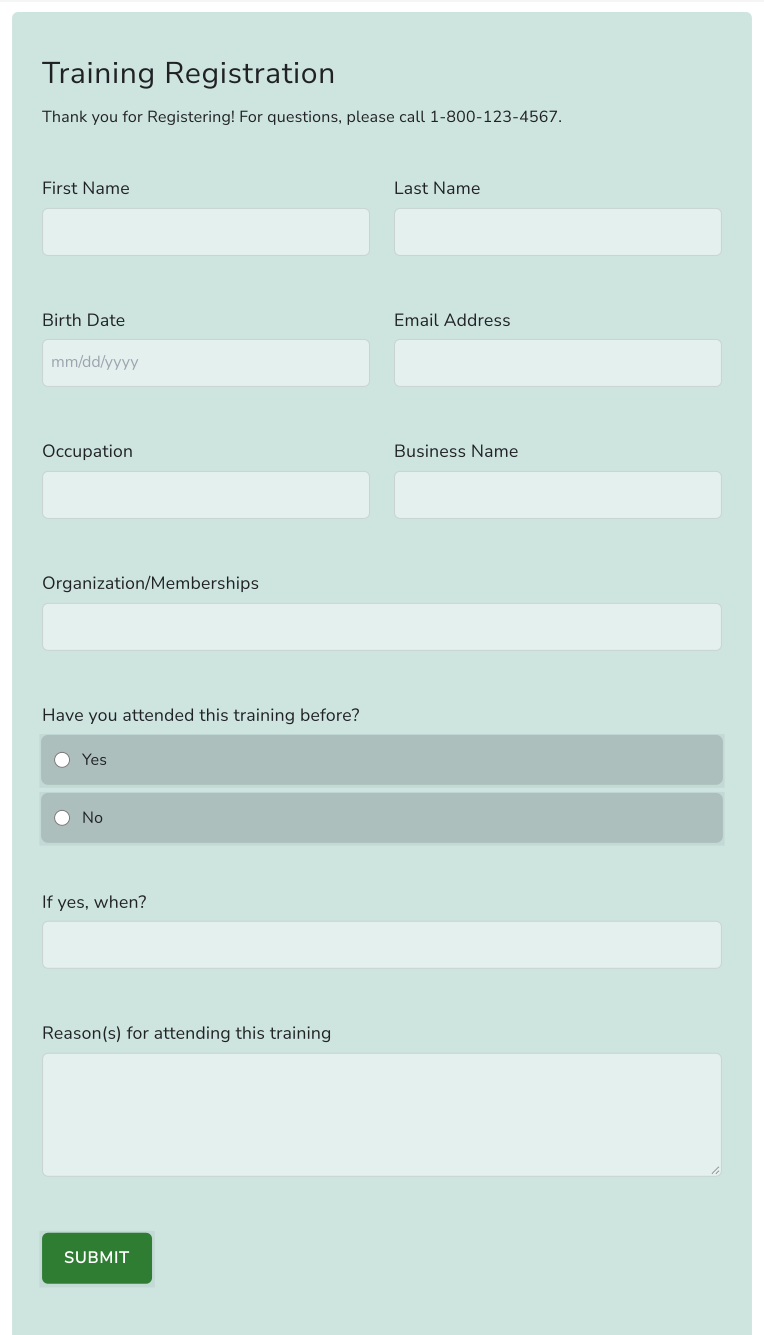
4. Look at your form getting a make-over with Formfacade and compare it with the sample form.
Almost there, right? But wait!
There are some more little things to be adjusted to the title
- Title has to be in Crimson red - Hex code #DC143C or rgb(220,20,60)
- Title needs to have a white bar background and extended from end to end.
- The description has to stay in black. And to be centered.
- Padding needs to be adjusted all over.
5. Let's do "Inspect element" and see what CSS will fit.
6. I made these adjustments in "Inspect element" and arrived at this CSS code below.
.ff-title {
color:#DC143C !important;
padding: 20px !important;
background-color: white;
position: relative;
transform: translateX(-4%);
width: 109%;
}
.ff-description {
padding-top: 20px !important;
align: center !important;
}
.ff-form {
padding: 0px 30px !important;
}
.ff-compose {
padding: 0px !important;
background: none !important
}
.ff-section {
padding-top: 0px !important;
}
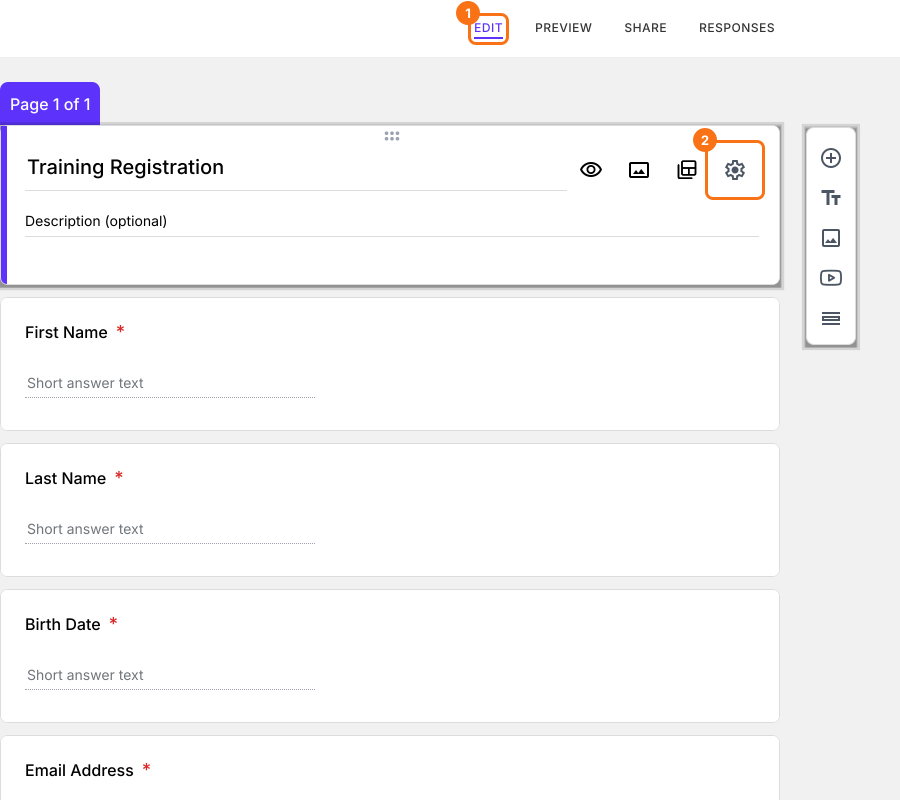
7. Now let me add the code to my form. I click on "EDIT", click on the form title, then on the ⚙️ icon and click on "Advanced" tab to add it in "Custom CSS". Click on "Save".
8. Watch the video below to see how the form is transformed when I add the code one by one.
And, here is the final form. Looks awesome! Isn't it?
How do you like such customization. Show us your designs and write to us at support@formfacade.com.
Bonus!
Here is a table of comparison between what customization are possible with Google Forms and Formfacade.
1. Identify the desired customization that you want for your form/field from this table.
2. Click on the linked article for a detailed step-by-step tutorial to achieve the design you want.
Make your Google Form look great on your website. Happy designing!
| Form | Google Forms | Formfacade |
|---|---|---|
| Layout | Standard one column | Multi-column |
| Background/Theme color | Yes | Yes |
| Button color | No | Yes |
| Form fields | No | Yes |
| Change Font settings | ||
| Font color | ? | No |
| Font style | Yes | Yes |
| Advanced CSS styles | No | Yes |
| Fields | ||
| Change Placeholder Text | No | Yes |
| Appearance (Hidden/Read-only) | No | Yes |
| Change the question name? | No | Yes |
| Pre-fill | Yes | Yes |
| Calculated Fields | No | Yes |
| Advanced customization (formatting text - bold, italics) | No | Yes |
| Conversion Tracking | No | Yes |
| Hotjar integration | No | Yes |
| File upload | Drive, requires sign-in | Yes |
Summary
If your Google Form must match a design of your own, its theme settings will not get you all the way there. With Formfacade, you change the layout and colors and you can add your own CSS to adjust the rest. Create your form and complete the steps above. If you have any questions, write to support.
Last updated: