Is there a way to change the button color or font styles in the form?
This is a common question from people whose form sits on their website. The button and the fonts should match the rest of your site. Google Forms lets you choose a theme color and fonts for the whole form, but you cannot choose a color just for the button, so the form can still look different from your pages. With Formfacade, you can update the button color and font styles and your visitors will see a button that matches your site. Even better, you can embed the form with no Google branding, so your customers feel they never left your site.
Let's start. Create your form and follow the steps below.
How to change the button color and fonts?
- On the page that opens, name your form, click Build form and click Proceed. It can take about a minute.
- You will land on the form's "Preview" tab.

- The "THEME" tab will be displayed
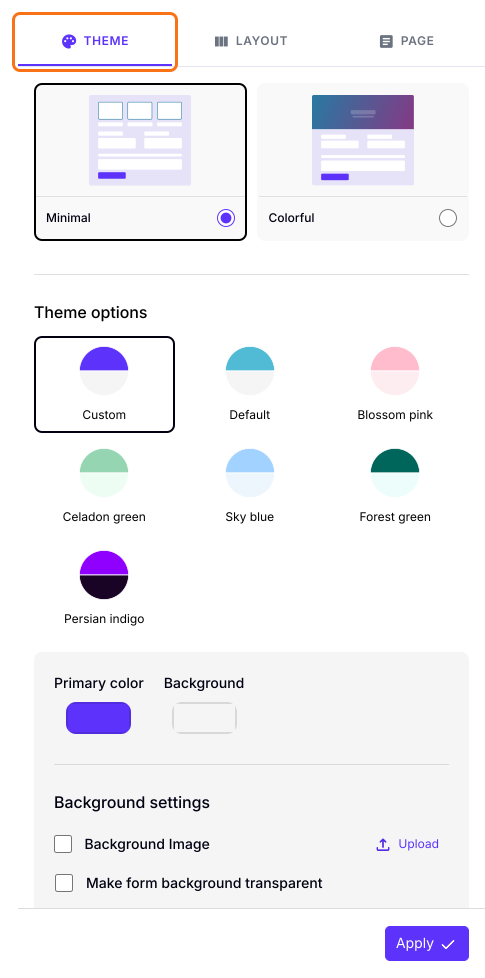
- Update the Primary color to change the button color
- Scroll down to Typography settings to update the fonts. The preview will change as you update them.
- Click on the "Apply to all forms" button, which changes the color and font on every live form on your account, not only this one.
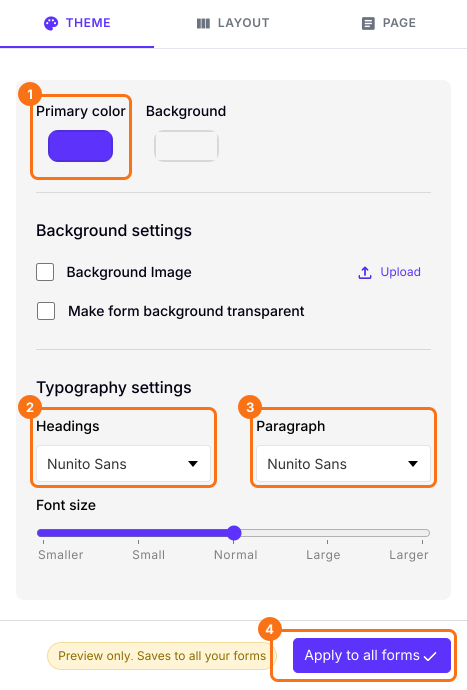
Your form will show the new button color and fonts.
Summary
If your button color and fonts do not match your website, your form will look out of place. With Formfacade, you open the THEME tab in the form preview, update the color and font and click on Apply to all forms, which changes every live form on your account. Create your form and complete the steps above.
Last updated: