How to edit your website?
This is a common question from people who want to change their website's words and pages themselves as their business changes. A Google Form gives you one page and nothing around it. Google Sites is free, but it is a separate job to learn, with no link to the form that takes your orders. With Neartail, you can click Edit on the Share page of your form and change each page of your website in place. You can also add About and Contact pages when you are ready. Even better, your website is built from your order form, so you change a product in one place.
Let's start. Create your site and follow the steps below.
Once you create your site, it will say "Your website is live". Click Edit site and go to Step 4. If you come back to it later, start at Step 1.
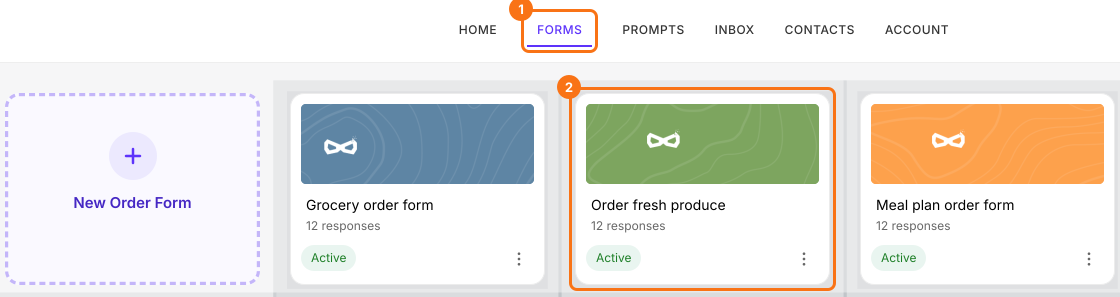
Step 1: Login to Neartail > click Forms > list of your forms will be displayed > click on the form to open it.
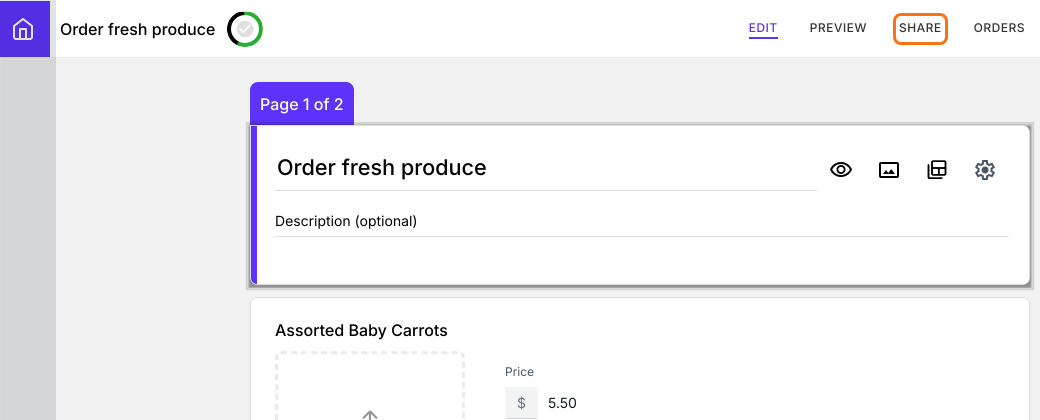
Step 2: Edit page will be displayed > click Share
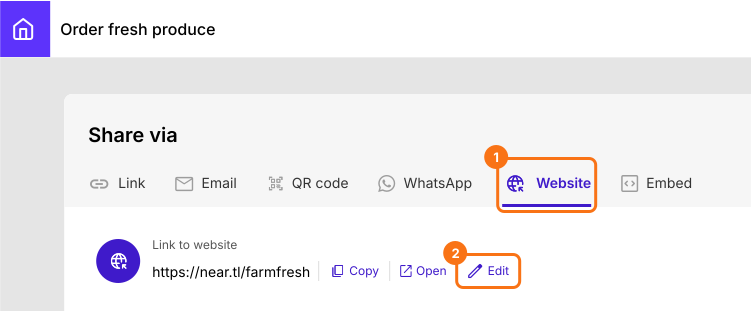
Step 3: In the Share page, click Website > click Edit
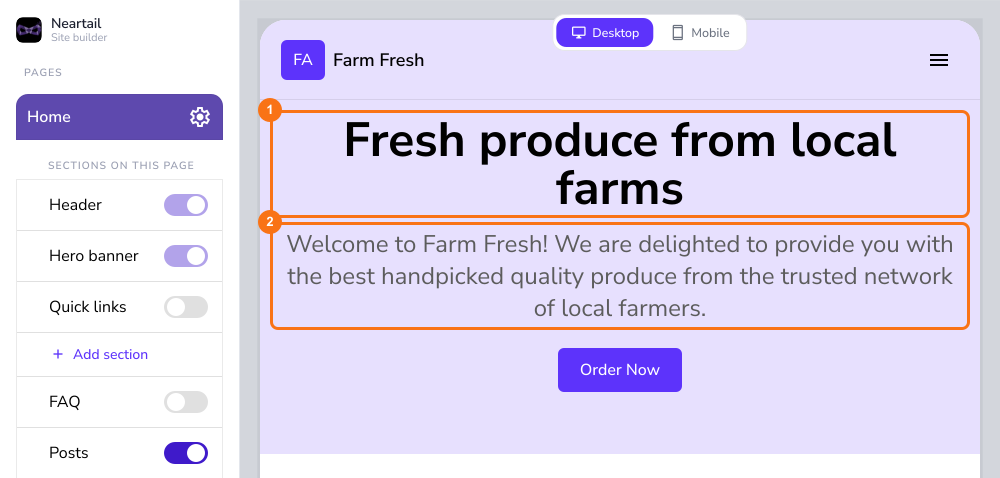
Step 4: Your near.tl website home page will open in a new tab > click on the title or description to customize the home page. To customize other pages, click on the relevant page in the left menu to open that page and then edit it
Summary
If you want to change your website yourself, a Google Form cannot give you one and a separate website builder takes time to learn. With Neartail, you click Edit on the Share page of your form and you change each page in place. Create your site and complete the steps above. If you have any questions, write to support.
Last updated: