How to create an email template with prefilled link?
This is a common question from people who send the same form to many customers. You do not want to type the same email each time. Google Forms gives you a prefill link, but it cannot send it for you, so you end up pasting each link into a separate email. With Formfacade, you can send an email with the prefill link to your customers by creating an email template. The next time, you pick it from Mail template and your message is ready. Even better, the form your customers open will have your own branding instead of Google's.
Let's start. Create your form and follow the steps below.
How to setup an email template?
- On the page that opens, name your form, click Create form and click Proceed.
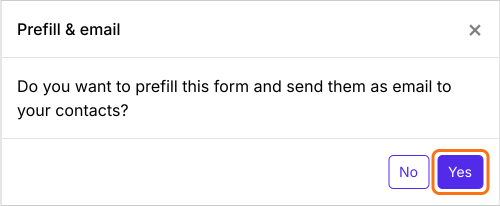
- You will land on the form's "Edit" tab, with the "Prefill & email" dialog open. It asks "Do you want to prefill this form and send them as email to your contacts?". Click Yes.
- A new tab will open on the Email page of the "Share" tab
- Enter the email address in To
- Update the subject, message
- Click Send email. The subject and message will be saved as an email template under Mail template
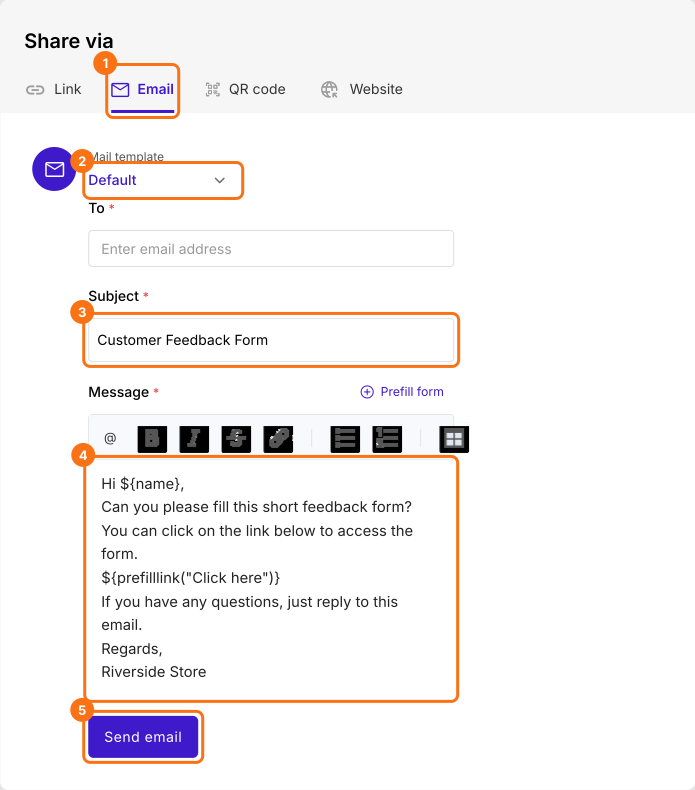
The next time you open this page, select it from Mail template. Each new subject you send is saved as a new template.
Summary
If you send prefill links by email, typing each message takes time. With Formfacade, you write the subject and message once and you can select it from Mail template the next time. Create your form and complete the steps above.
Last updated: