How to add products with variants?
This is a common question from clothing and shoe shops. For example, if you sell shirts or shoes, one product comes in many sizes and each size may have its own price. In a Google Form you add a separate question for each size or list them all in one choice. It cannot price each size and your form gets long. With Neartail, you can sell products with variants. Your customers select the variant and then the quantity they want. Even better, one product stays as one product on your form, with its own photo, so your form stays short.
Let's start. Create your order form and follow the steps below.
How to add a product with variants?
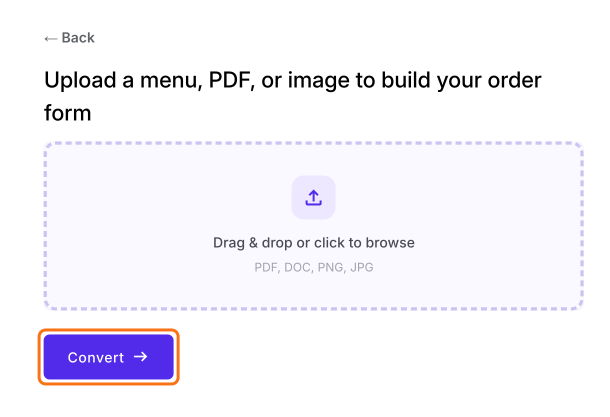
- On the page that opens, upload your menu, a PDF or an image and click Convert. If you do not have one, click Back, click "Enter your form name", type your form's name, click Generate, wait about a minute and click Proceed.
- Once you create the form, you will land on the form's "Edit" tab. If it asks "Do you want to preview this form?", click No.

To get started, click Add product. The new product goes after the question you clicked last.
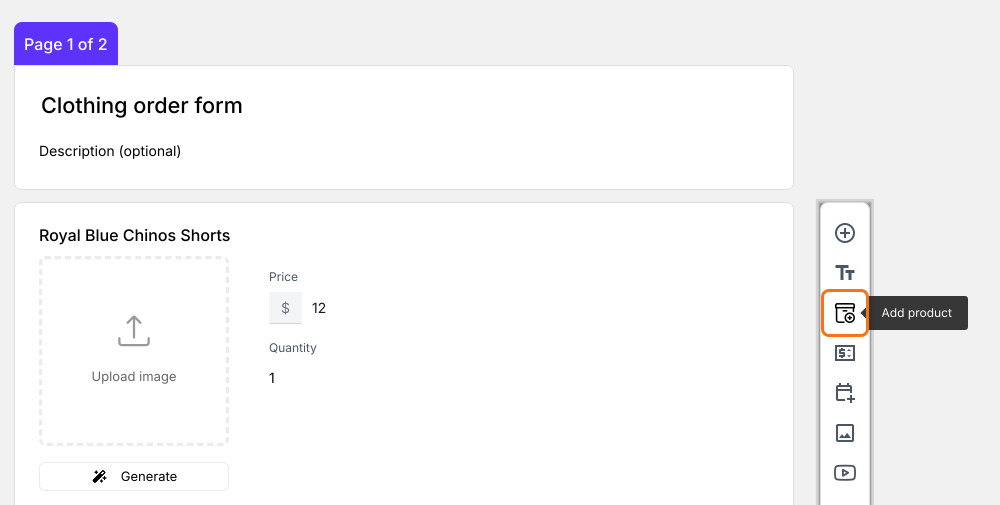
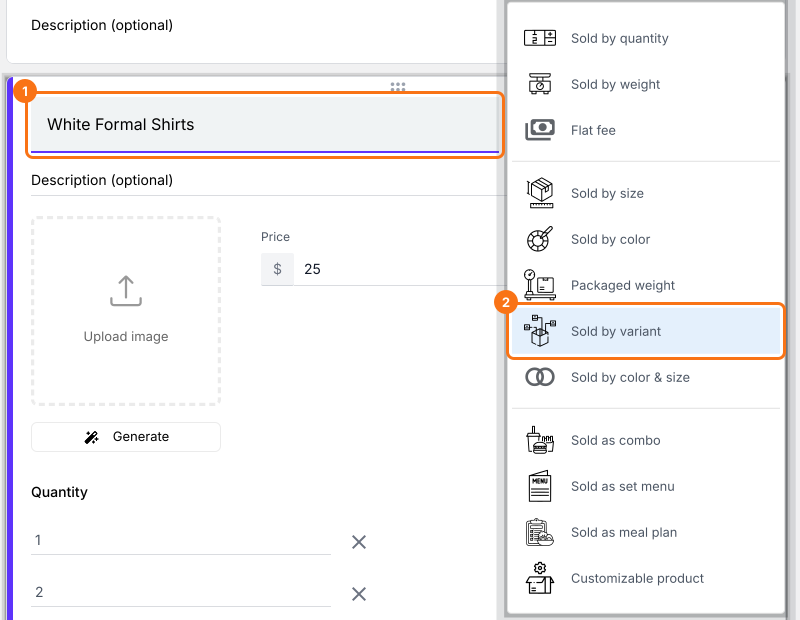
New product will be displayed. Enter the product name and select Sold by variant.
Enter the product price and upload an image. You can also update the product description.
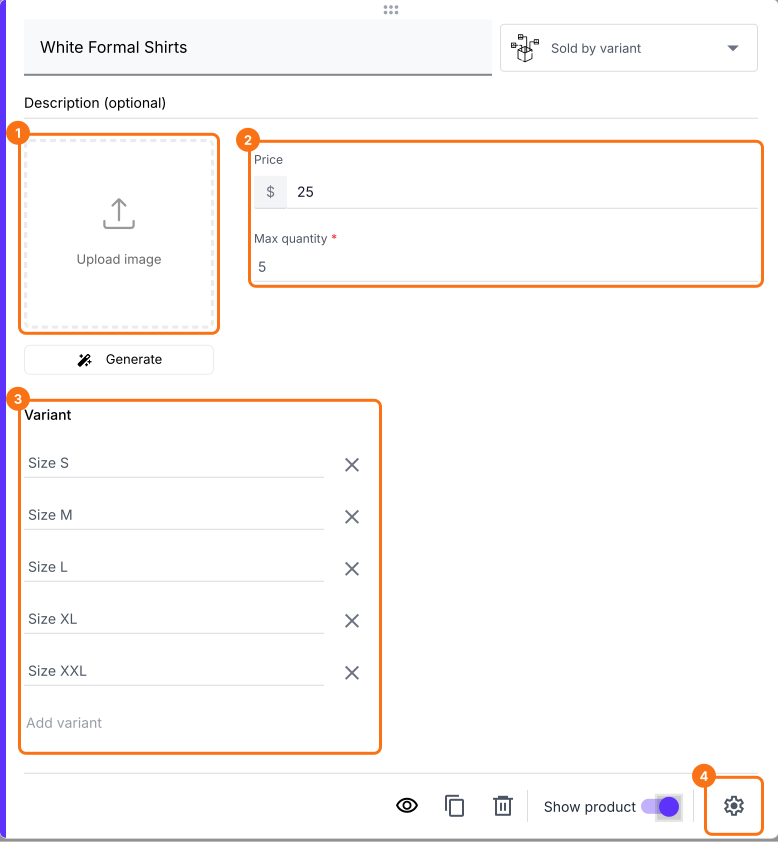
Enter the product variants. If the prices of the variants are different, click Advanced setting, then click Variant price.
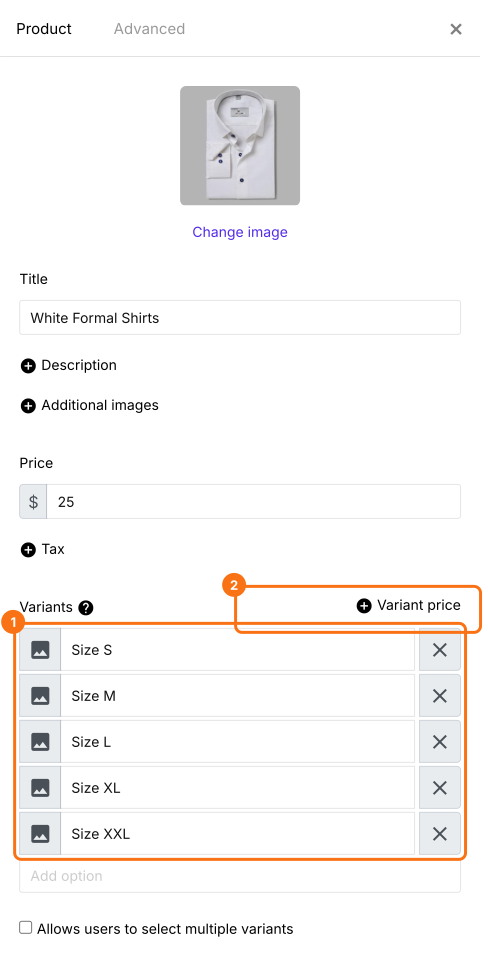
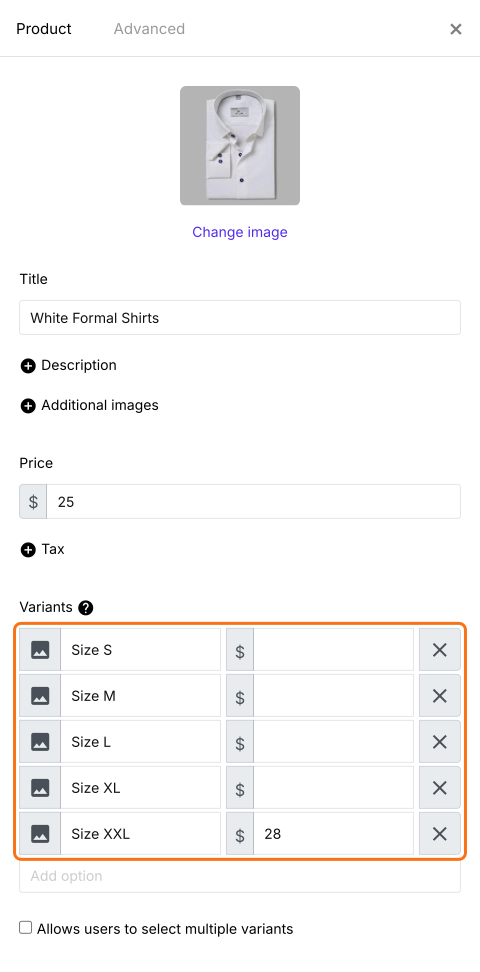
Enter the price for the product variants. If you don't enter the price, it will use the default price for the product.
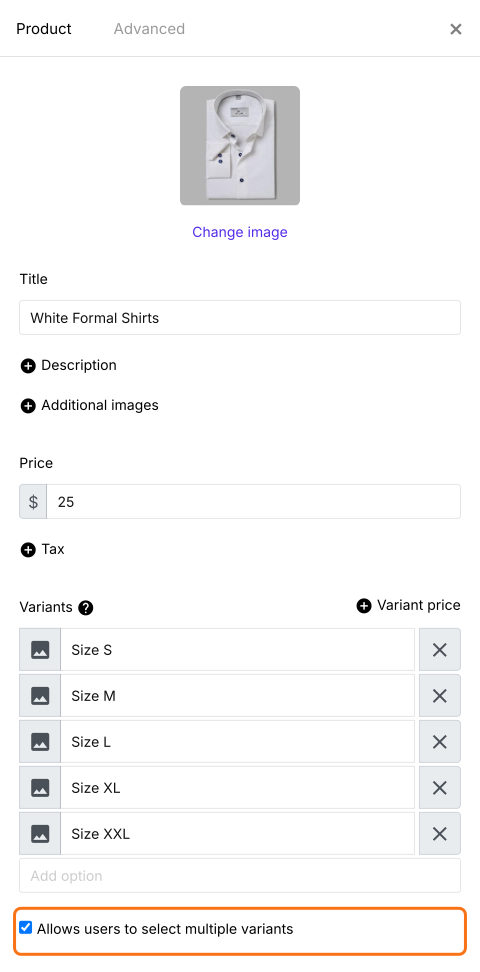
You can also enable the Allows users to select multiple variants option so that users can order more than one variant. Click Save.
When users click on the add to cart option for product with variants, they will have to select the variant they want to order.
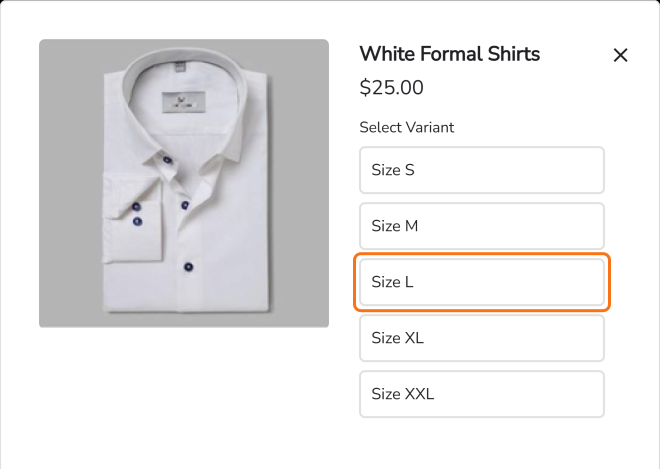
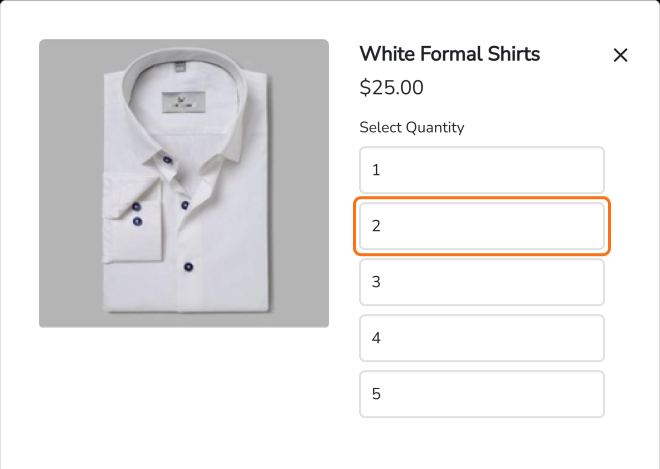
Once they select the variant, the option to select the quantity will be displayed.
Summary
If one product comes in many sizes, a Google Form cannot price each size or keep the form short. With Neartail, you add the product as sold by variant and your customers select the variant and then the quantity they want. Create your order form and complete the steps above.
Last updated: