How to generate an order number or unique id for each response?

This is a common question from small shops and food sellers who keep track of many orders. You need a number for each order, so that you and your customer can talk about the same one. A Google Form does not number its responses, so you add the numbers yourself in the sheet after the orders come in. You can write a script instead, but then someone has to write it and fix it. With Neartail, you can use the SEQUENCE function to generate an order number that goes up by 1 or add text to it to make a unique order id. Each order gets its own number without any work from you. Even better, the confirmation email can carry the order number, so your customer has it when they ask about the order.

Let's start. Create your order form and follow the steps below.

How to generate an order number?

  • On the page that opens, click "Enter your form name". Type your form's name, click Generate and wait about a minute.
  • Check the outline it suggests and click Proceed.
  • Once you create the form, you will land on the form's "Edit" tab. If it asks "Do you want to preview this form?", click No.

The tabs Edit, Preview, Share and Orders, with Edit marked
  • Click on the Order Quantity question, then click Add field in the toolbar on the right
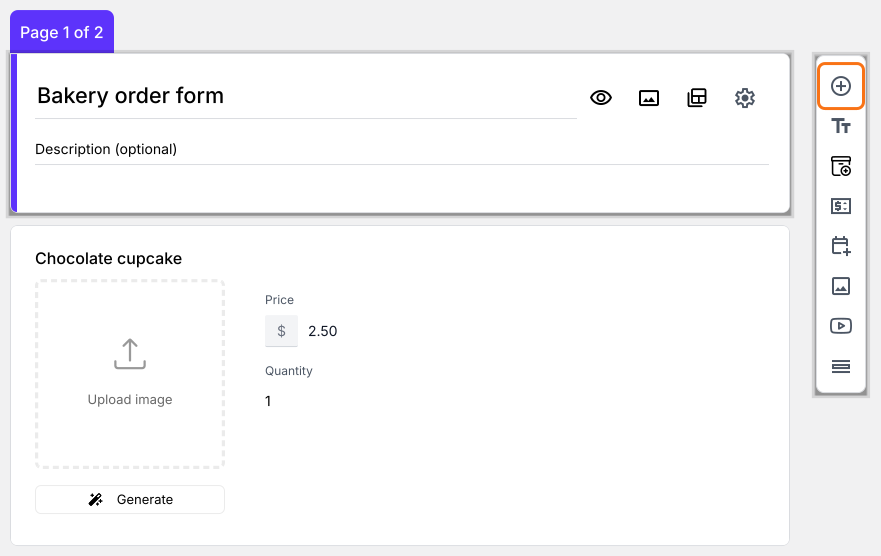
The form in the editor, with the Add field icon marked in the toolbar on the right
  • New question will be displayed. Enter Order ID as its title, then click the ⚙️ icon
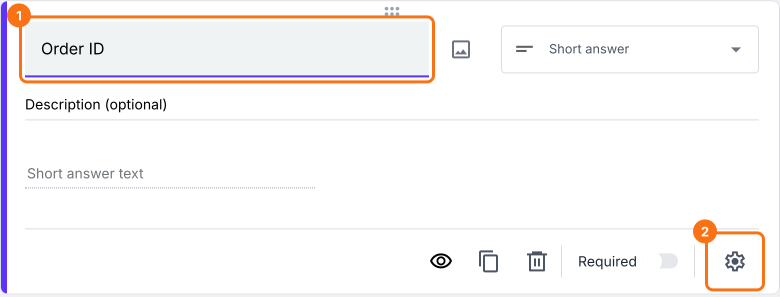
The Order ID question selected in the editor, with the gear at the bottom of its card marked
  • Field settings screen will be displayed. Select the "Answer" tab and write the formula to generate the order number.
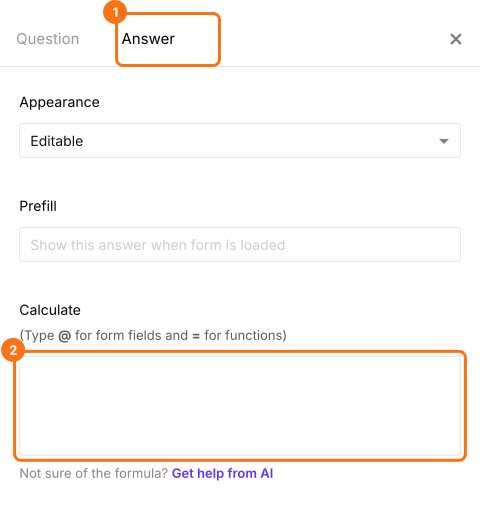
The field settings panel with the Answer tab and the Calculate box marked

Use SEQUENCE function to generate order number

SEQUENCE function generates a number that is auto incremented by 1 for each response. If you would like the order number to start from 10001, then you can add the below formula in the calculate option:
10000 + sequence()
Please note that the order number is generated when the user starts filling the form and not when the user submits the form. Hence the order number for the submitted orders may not be in sequence. The missing sequence represents the orders that were abandoned by the users.
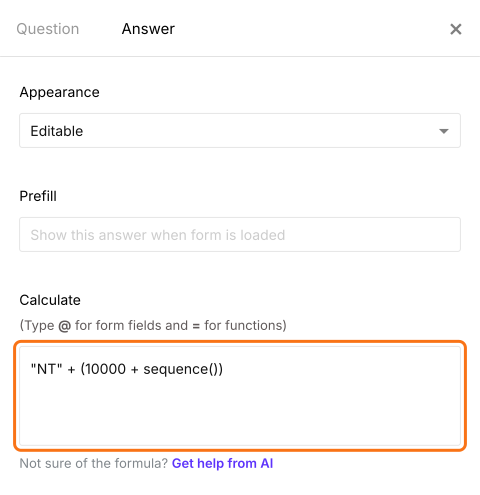
You can also add a text identifier to generate an order id instead of just a number. For example, you can append "NT" with the order number to generate a unique order id such as NT10001 etc. The formula for generating this order id would be as follows:
"NT" + (10000 + sequence())
  • Write the sequence formula in the Calculate option as shown below to generate an order number. Click Save
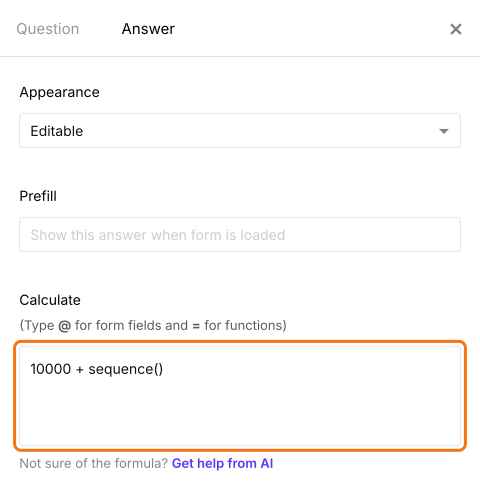
The Answer tab of the field settings with 10000 + sequence() in the Calculate box
You can also concatenate text to generate a unique order id as shown below.
The Answer tab of the field settings with "NT" + (10000 + sequence()) in the Calculate box
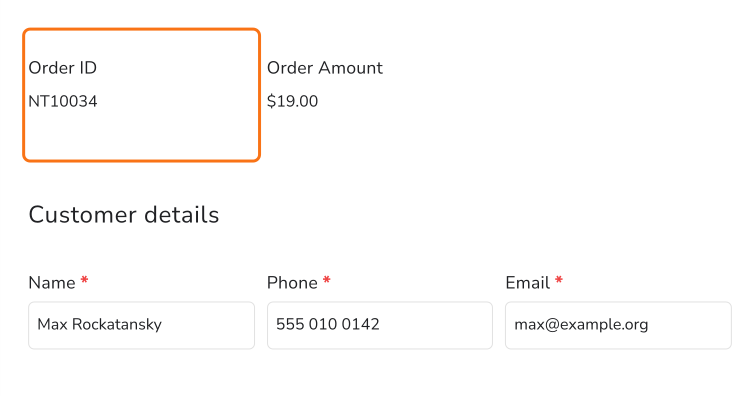
Each order gets its own number on the form.
An order form with the Order ID NT10034 marked, above the Order Amount and the customer details

Summary

If you need a number for each order, a Google Form will not generate one. With Neartail, you write the SEQUENCE function in the Calculate option and each order gets its own order number or order id. Create your order form and complete the steps above. If you have any questions, write to support.

Last updated: