How to add coupon code to Google Forms
"How to create coupon codes to an online website store"- Quora
This is a common question from small food businesses who sell online. For example, getting someone to try your food for the first time is the hard part, so you want to give them a code for money off. A Google Form can check a code with response validation, but it cannot take the money off the total, so you work out every discount by hand. With Neartail, you can add a question for the coupon code and write the discount as a formula. Your customers type the code and see the money come off the total before they submit. Even better, you can offer a percentage or a fixed amount off and the form will have your own branding instead of Google's, so new customers see your business and not a plain Google Form.
Let's start. Create your order form and follow the steps below.
How to configure valid coupon codes?
- On the page that opens, click "Enter your form name". Type your form's name, click Generate and wait about a minute.
- Check the outline it suggests and click Proceed.
- Once you create the form, you will land on the form's "Edit" tab. If it asks "Do you want to preview this form?", click No.

- Your form comes with products, an Order Amount question that adds up by itself and an Order Quantity question. Click on each product and check its name and price, because a generated product can have no name and a price of 0.
- Click on the Order Quantity question, then click Add field in the toolbar on the right
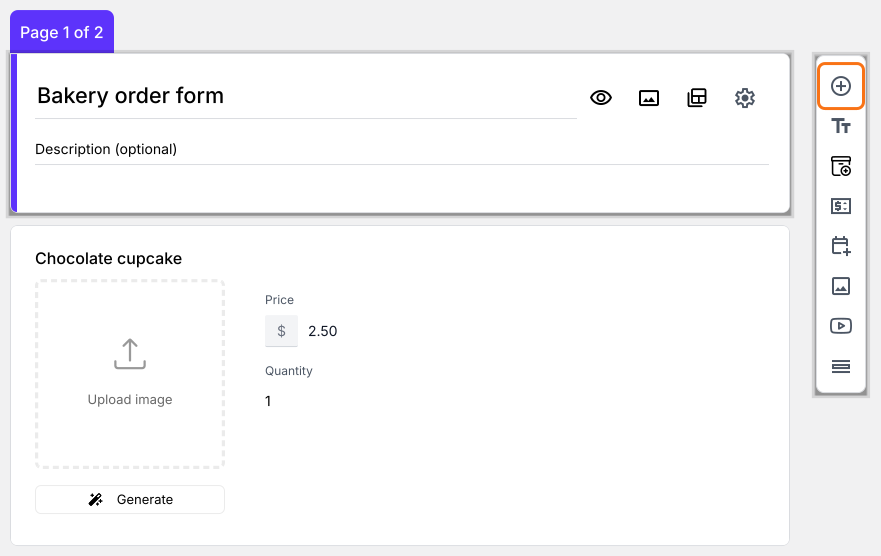
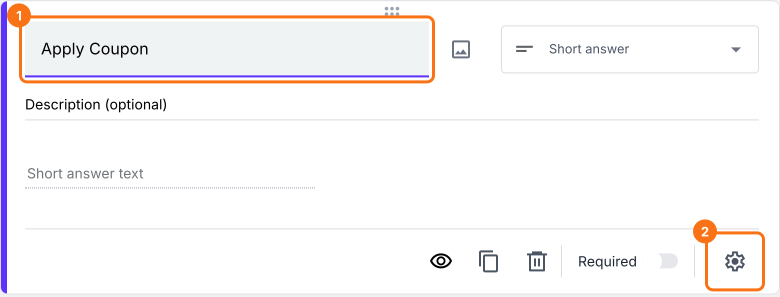
- New question will be displayed. Enter Apply Coupon as its title
- Click on the ⚙️ icon at the bottom of the question and select the "Answer" tab
- Click Configure under Validation. Select Regular expression > Matches and enter the coupon code in the pattern to be matched, such as WELCOME20. For more than one code, enter them like ^(WELCOME20|SAVE10)$. Enter the error message and click Save
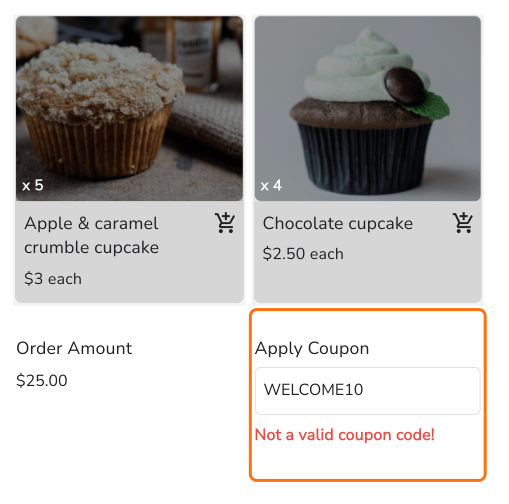
How to apply discounts based on coupon codes?
- Click on the Apply Coupon question, then click Add price field in the toolbar on the right
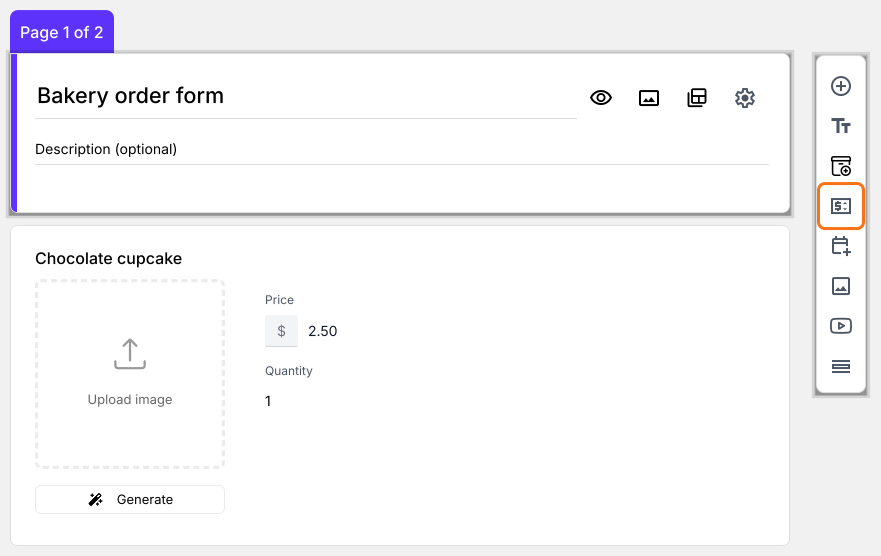
- Add price field screen will be displayed. Select Discount and click Next
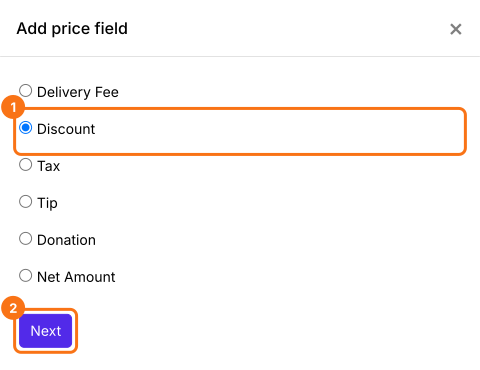
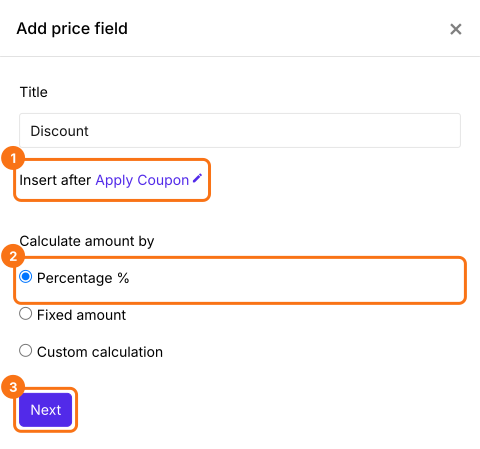
- Check that Insert after says Apply Coupon. If it does not, click the pencil and select it or the field will land where you last clicked, which can be in the middle of your products
- Select Percentage % and click Next
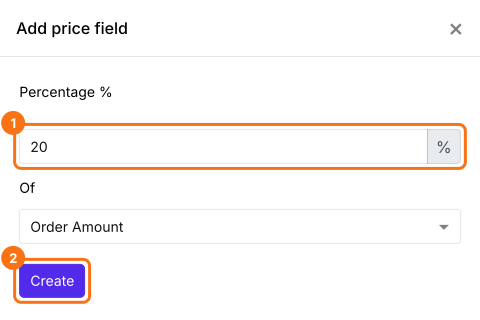
- Enter 20, check that Of says Order Amount and click Create
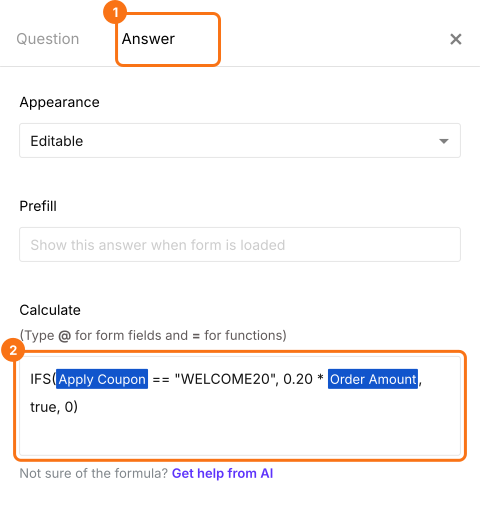
Use IFS function to apply discounts based on coupon
- condition1 - The first condition to be evaluated.
- value1 - The returned value if condition1 is TRUE.
- condition2, value2, … - Additional conditions and values if the first one is evaluated to be false.
- Field settings screen will be displayed. Select the "Answer" tab. The Calculate option already holds the Percentage formula, so replace it with the formula as shown below. Type @Apply to pick Apply Coupon and @Order Am to pick Order Amount, because with less than that a product can get picked instead. It shows as Order Amou.. in the box. Click Save
Fixed amount discount
How to show the amount to be paid?
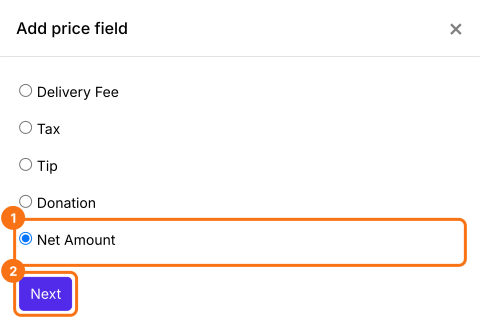
- Click on the Discount question, then click Add price field. Select Net Amount and click Next
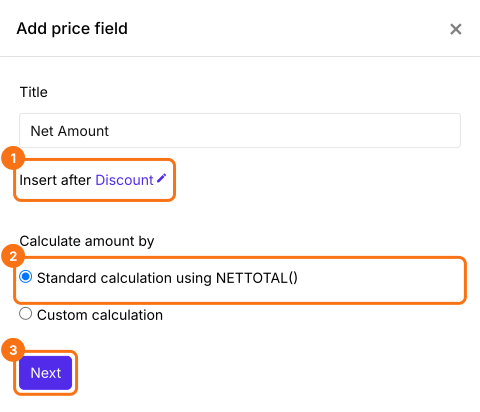
- Check that Insert after says Discount. Select Standard calculation using NETTOTAL() and click Next
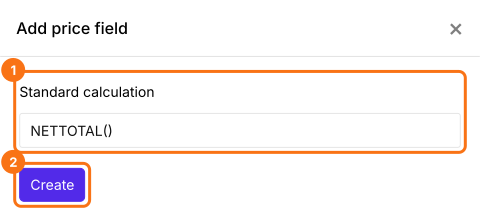
- Click Create
- Field settings screen will be displayed. Click Save
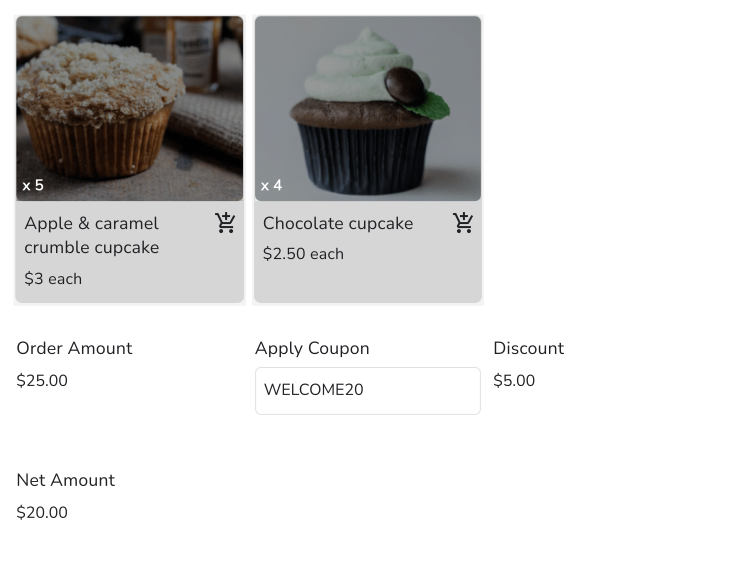
Summary
Last updated: