How to let people sign a Google Doc without a Google account?
"they cannot open documents without signing up for gmail"- Google Docs Editors Community
This is a common problem for Google Docs users who need a signature from outside their organization and 28 people on Google's forum have reported it. For example, you have a photo release in Google Docs to be signed before Saturday's event and some people use hotmail.com. Google's eSignature can ask them to get a Google account first. Many won't make one just to sign, so the Doc sits unsigned. With Formesign, you can send a link and someone on Hotmail opens it and signs your Doc, with no Google account and no sign-in. Even better, your Doc keeps its layout.
Let's start. Create your form and follow the steps below.
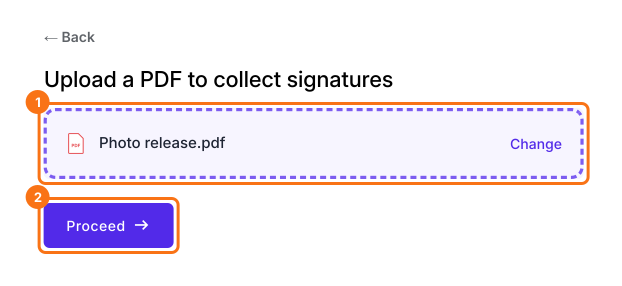
1. Upload your Doc as a PDF
In Google Docs, click File, Download, then PDF Document. Click Upload a PDF, add your photo release and click Proceed.
2. Keep your layout
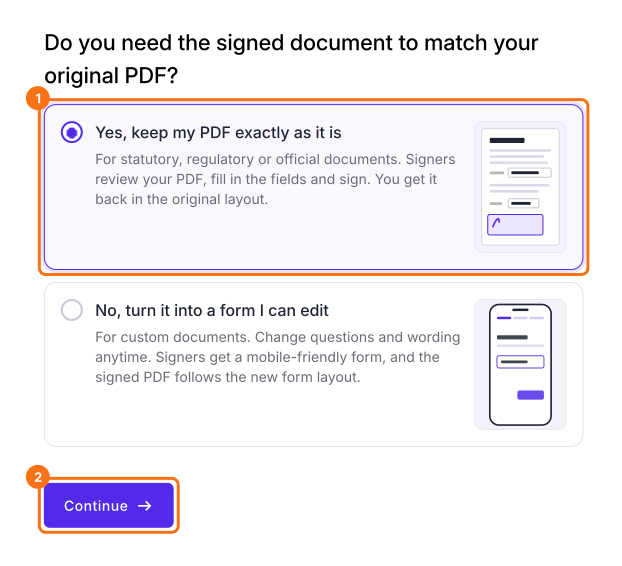
Choose Yes, keep my PDF exactly as it is and click Continue. Formesign puts boxes on the blanks and the signature line, so check them and click Proceed. Under How do you want the signature?, select Create a reusable link for recurring forms and click Continue. Your form opens in a new tab so that you can try it. Back on this tab, click View signed documents.
3. Turn off sign-in
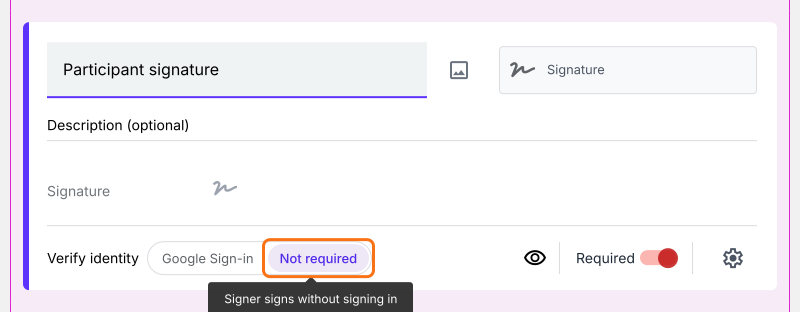
Each signer starts on Google Sign-in, which is what you're turning off. Open the FORM tab and click the signature field. Next to Verify identity, click Not required.
4. Send the link to anyone
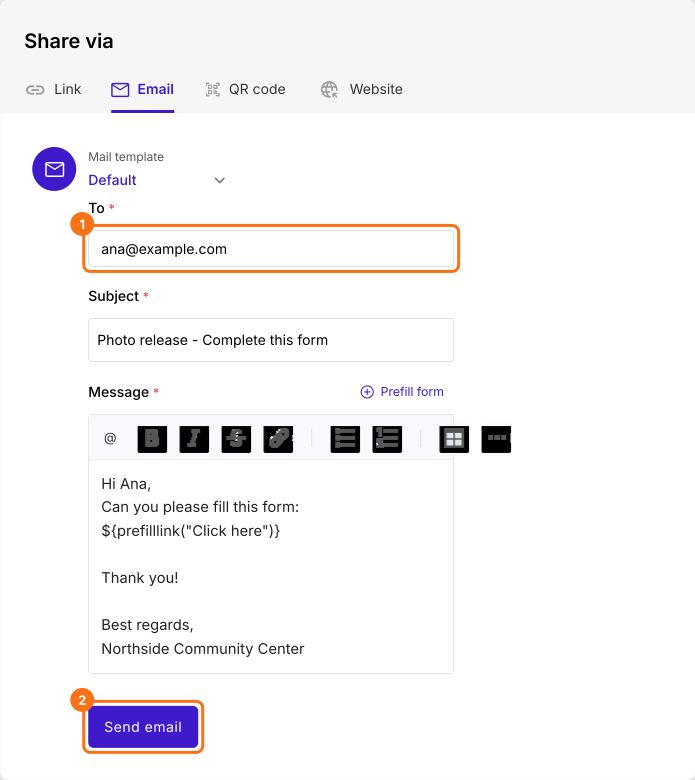
Open SHARE, then Email. Type the participant's email, Hotmail or anything else and click Send email.
5. They sign without signing in
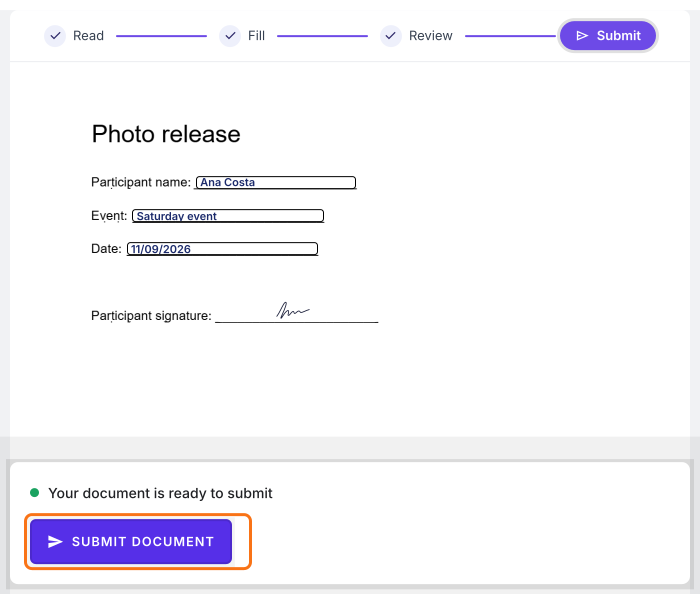
The participant opens your link, fills in their part and their email and draws their signature and no Google sign-in appears. They click SUBMIT DOCUMENT and the signed PDF shows up in your SIGNED PDF tab.
Summary
If people outside your organization have to sign your Doc, being asked to get a Google account stops many of them and you go back to printing. With Formesign, you upload the Doc as a PDF and turn off sign-in, so anyone can open your link and sign. Create your form and complete the steps above. If you have any questions, write to support.
Last updated: