How to add terms and conditions in Google Forms?

"terms and conditions to give a client before he/she agrees to the service"- Quora
This is a common question from people who provide a service and use Google Forms. For example, you clean homes and each client has to accept your terms before your first visit, so nobody argues about a late cancellation. Google Forms does not have a built-in widget for the terms and conditions. You can add them in the form with an "I agree" checkbox, but some users might submit the form without reading the terms. With the Formesign - Signature for Google Docs addon, you can show a consent screen with the terms and conditions before submit. Even better, users have to click on the Agree button to submit, so you know each client saw your terms.
Let's start. Open your form in Google Forms and follow the steps below.
#1 Add terms and conditions
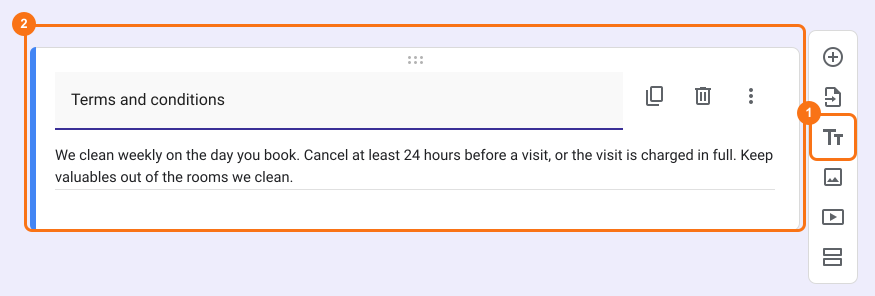
You can add the terms and conditions text directly in Google Forms.
- Open your form in Google Forms
- Click on the TT option to add a title and description
- Enter "Terms and conditions" in the title option
- Enter the terms and conditions text in the description option
- To get consent from the users, you can add a required checkboxes question with "I agree" as the answer choice
The limitation with this option is that the form might become difficult to access and complete. Users may need to scroll through the form to read them, fill the answers and submit it.
#2: Add hyperlink
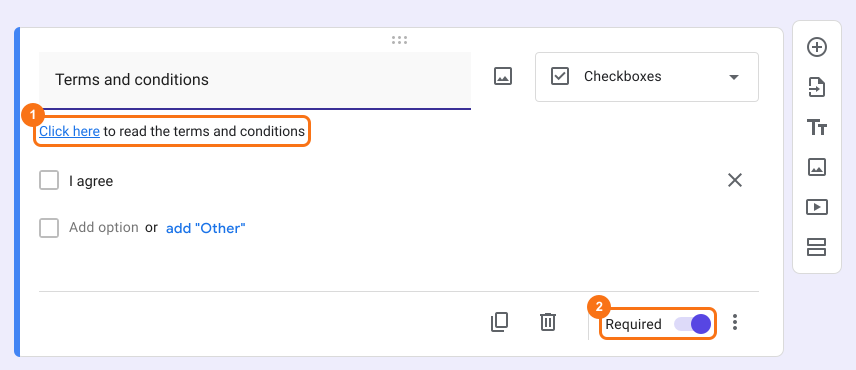
You can add the link to the terms and conditions as a hyperlink in the description option for the checkboxes question so that users choose to click on the link to read the terms and then check the "I agree" answer choice to provide consent.
- Open your form in Google Forms
- Click on the + Add question icon to add a checkboxes question
- Enter "Terms and conditions" in the title option
- Add the link to the terms & conditions page as a hyperlink in the description option
- Add "I agree" as an answer choice for this checkboxes question
- Mark this question as required so that users have to answer this question to submit the form
The limitation with this option is that the users will have to open an external link to read the terms; some users might skip this step and submit the form without reading the terms.
If you don't have the terms and conditions published online, either on your website or other platforms, then you can create google doc with T&C's and publish it.
- Create a google document with the terms and conditions text
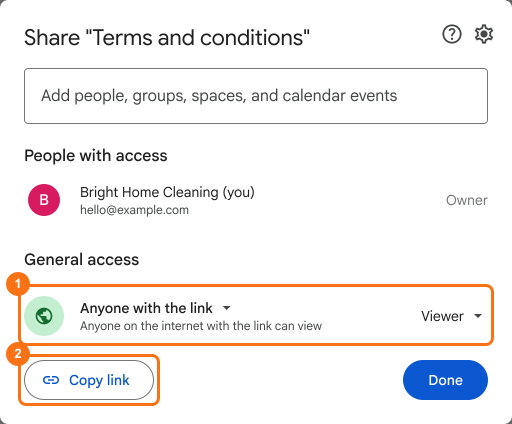
- Click on the Share option in the top right corner
- Change the general access to "Anyone with the link" with viewer permissions
- Copy the link and add it as hyperlink in the form
#3: Show consent screen
The options listed above provide a simple way to inform the users about the terms and conditions. However, for legal purposes, it's recommended to have users explicitly acknowledge your terms and conditions by clicking on a button. You can use the Formesign - Signature for Google Docs addon to show a consent dialog box with the terms and conditions before submit.
- Add the terms and conditions in the form's description
- Install the Formesign - Signature for Google Docs addon from Google Workspace marketplace
- Open your form in Google Forms
- Click on the addon icon
- Click Formesign - Signature for Google Docs
- Click More options ...
- Click Proceed if the addon asks to modify the form
- The More options panel will be displayed
- Click Share in the Share this with users row
- Formesign Share page will open in a new tab
- Click on "Edit" tab
- Click on the Submit setting gear icon in the After page row at the end of the form
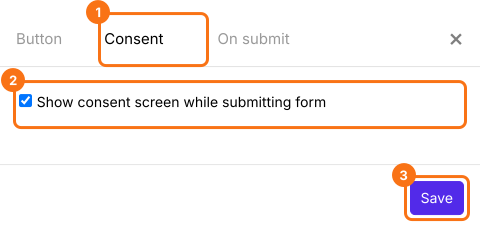
- A panel with the tabs Button, Consent and On submit will be displayed
- Click Consent
- Check the show consent screen option and click Save
- The terms and conditions will be displayed in the consent screen before submit.
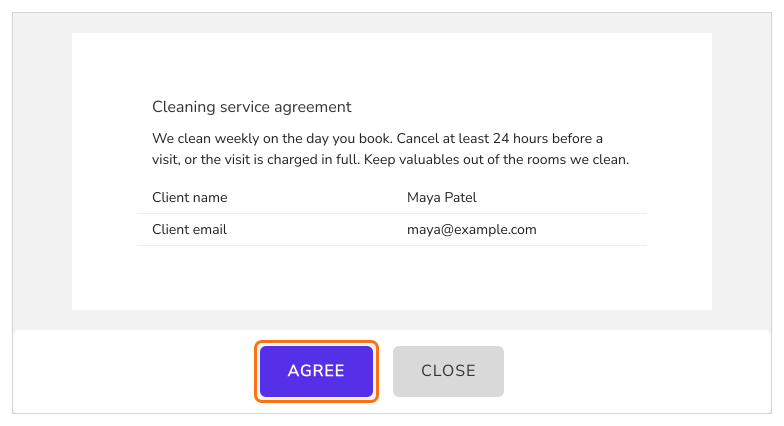
When the user fills the form and clicks on the submit button, the consent screen will be displayed. Users can review the terms and conditions and then click on the Agree button to submit the response or click Close. The clickwrap agreements are often considered more legally enforceable than checkbox agreements because they require users to take an affirmative step to demonstrate consent.
Summary
If each client has to accept your terms before your first visit, an "I agree" checkbox can be ticked without reading them. With Formesign, you show a consent screen with the terms and conditions before submit and users have to click on the Agree button to submit their response. Open your form in Google Forms and complete the steps above. If you have any questions, write to support.
Last updated: