How to view individual responses in google forms?
This is a common question from Google Forms users who need to see everything one person submitted. For example, you might want to read one customer's full order. The summary mixes that person's answers with everyone else's, question by question. Google Forms has an Individual tab for this, but you have to step through the responses one by one to find that person. With Formfacade, you can open your responses in Google Forms from the Responses tab and view them by form respondent. Even better, each response also shows on Formfacade's Kanban board as a card, so you can click the person you want.
Let's start. Create your form and follow the steps below.
How to get your responses into Google Forms?
- On the page that opens, name your form, click Embed form and click Proceed. It can take about a minute.
- You will land on the form's "Share" tab, on Embed. The top bar may say "Blank Formfacade form" until you reload the page.
- Click on "Responses" tab

- Click Submit to Google Forms
- "Submit responses to Google Forms?" popup will be displayed. Click Proceed

If the button already says View in Google Forms, your responses are already going to Google Forms. Only the responses submitted after you click Proceed will reach Google Forms.
- Click on "Share" tab

- Click Link, then click Open to open your form
- Fill the form and submit it, so that you have a response to see
How to view individual responses?
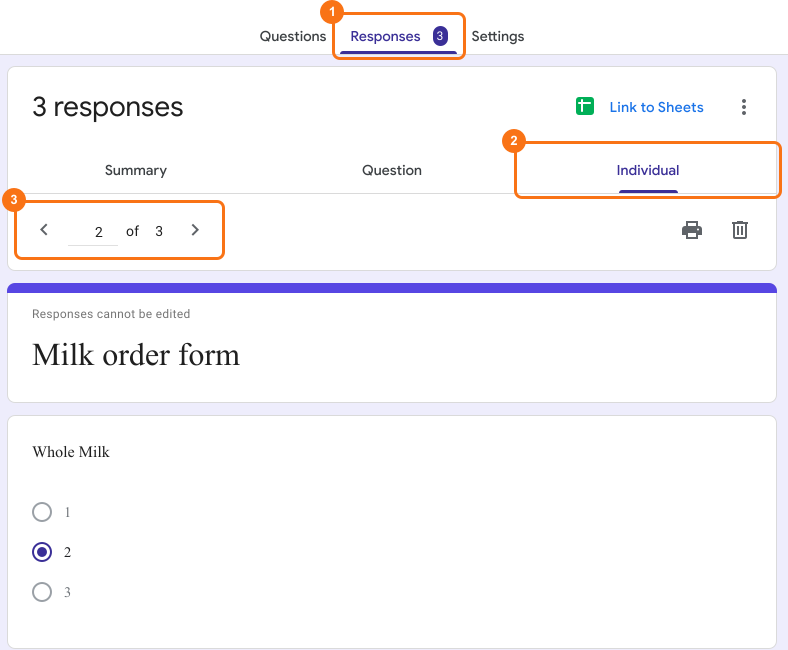
- Click on "Responses" tab
- Click View in Google Forms. Your form's responses will open in Google Forms

- Click Individual to view form responses by form respondent
- You can use the previous and next icons to navigate between individual responses.
Summary
If you need all the answers from one person, the summary will not show them together. With Formfacade, you click Responses > View in Google Forms > Individual and you can use the previous and next icons to go from one response to the next. Create your form and complete the steps above. If you have any questions, write to support.
Last updated: