How to edit google form after submit?
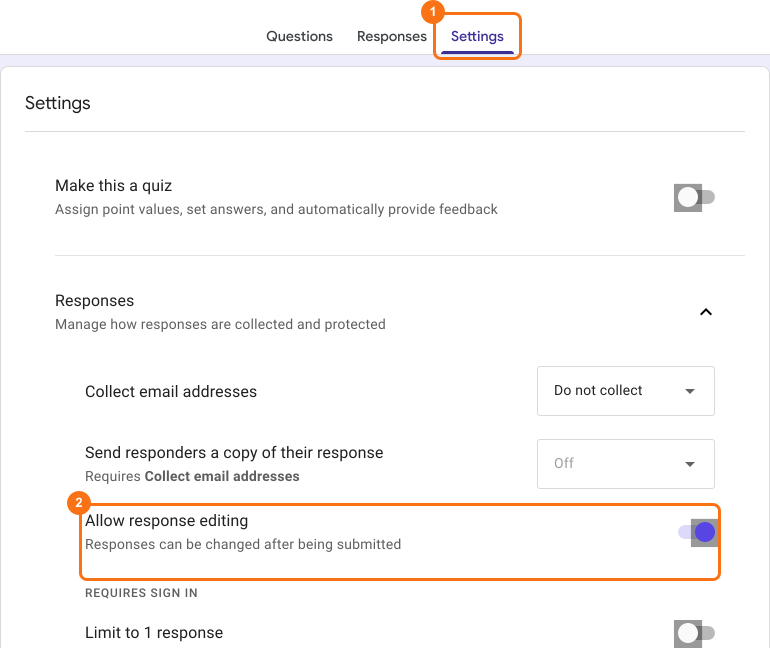
This is a common question from Google Forms users who find a mistake in their form after sharing it or have a user who needs to correct an answer. You need to know what you can change and what it will affect. A change to a question can affect the responses you have already collected, so it helps to know this before you edit. Form owners or collaborators can edit the form anytime. When designing the form, they can also enable the Allow response editing option in Google Forms and allow form respondents to edit their submitted responses.
Edit google form after submission
You can edit your form anytime, even after sharing it with your users to collect responses. To make edits, open your form in Google Forms and select an existing question or answer choice to edit or add a new question, section, image, video & more. Whenever you make the edits, the changes will be saved instantly and it will be reflected in the form whenever the user opens the form.
Dynamically update google form on form submission
You can use Apps script or add-ons from google workspace marketplace to dynamically update google forms when a user fills the form and submits it. There are two key use cases where this is required.
Limit responses in Google Forms: You can close the google form to stop accepting responses once the max limit for the response is reached. For example, if the maximum seats for an event is 30, you can close the registration form once 30 users have registered for the event. Click here to search for add-ons that limit form responses.
Limit choices in Google Forms: You can remove, update, auto-populate answer choices for dropdown, multiple-choice or checkbox questions in your form on submit. This is useful for (inventory) use cases where you want to limit the number of times an answer choice can be selected. For example, you want to limit the number of bookings for a time slot or allow only booking for a time slot. Click here to search for add-ons that limit answer choices.
⚠️ Note
- If you make changes to your form, it will not affect the form link used to collect responses. The link will remain the same.
- If you make changes to existing questions and answer choices in google forms, it might affect the submitted responses already recorded in google forms. You should sync responses to Google Sheets to ensure that you don't lose any data.
Edit google form responses after submission
When the Allow response editing option is enabled in google forms, an edit link will be included in the confirmation message shown after submit and the response receipt email sent to the form respondents. Users can click on this edit link to make changes to the response they have submitted. Click here to learn more about how this works.
Summary
If you need to change your form after sharing it, you can edit it anytime in Google Forms and the form link will remain the same. If your users need to change their responses, you can enable the Allow response editing option. If you do not have a form yet, create your form.
Last updated: