How to assign points for a dropdown question?
This is a common question from people who use Google Forms for surveys that have no right answer. For example, you might use a survey to assess something like gaming addiction, where every yes answer has to count. A quiz in Google Forms needs a correct answer for each question and a survey like this one has none. So you end up counting the answers by hand for each response. With Formfacade, you can assign different points for the answer choices in the dropdown question and calculate the score. The score is worked out when someone fills the form. Even better, you can show a different result for each score range, so each person knows what their score means.
Let's start. Create your form and follow the steps below.
How to assign points for dropdown questions and calculate scores?
- On the page that opens, name your form, click Create form and click Proceed.
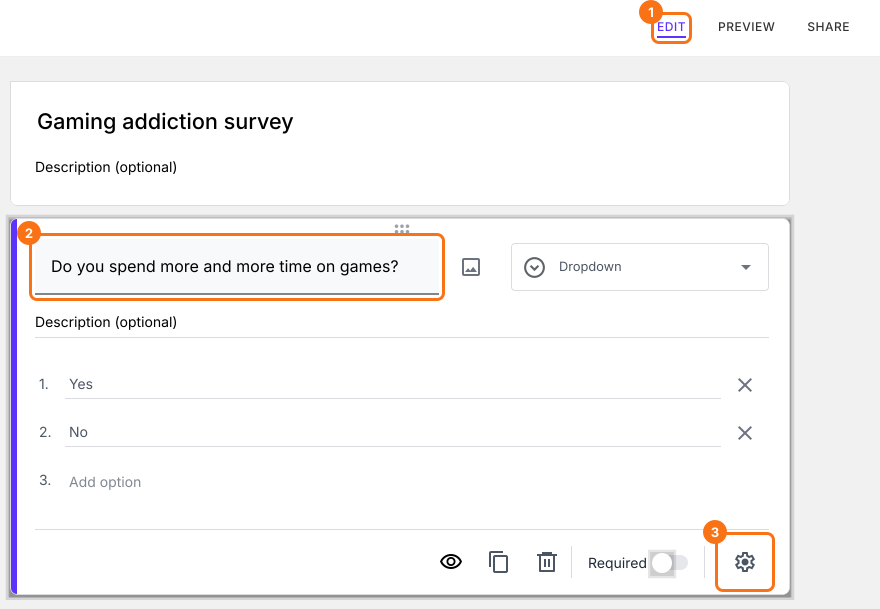
- You will land on the form's "Edit" tab. The "Assign points" dialog opens about 15 seconds later, so wait for it.

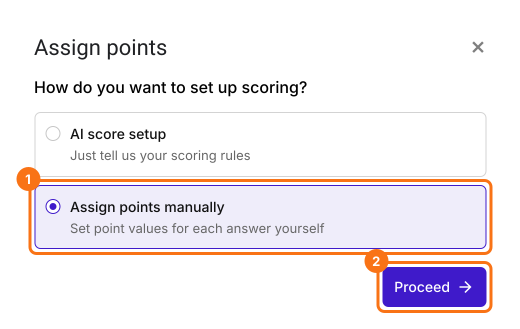
- It asks "How do you want to set up scoring?". Select "Assign points manually" and click Proceed.
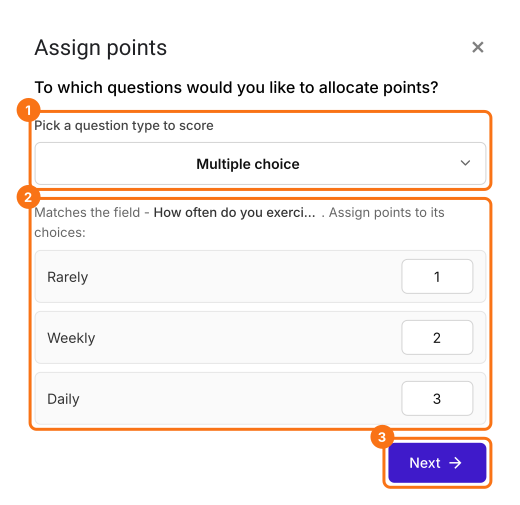
- Pick Multiple choice as the question type to score, assign points to its choices and click Next. The same points go to every multiple choice question in your form.
- It asks "How do you want to show the score?", with both options ticked. Click Next.
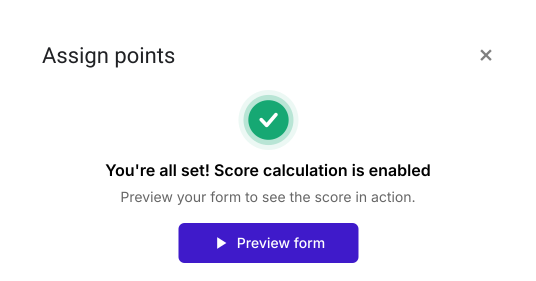
- You're all set message will be displayed. Click the × to go back to the "Edit" tab.
Your form now has a Score question and the same points on every multiple choice question. The steps below give each question its own points.
Let's change this form into a simple survey to assess gaming addiction. The questions are based on diagnostic criteria for addictive gambling behavior. If a user answers "yes" to six or more of these questions, then they most likely have an addiction to video games. If a user answers "yes" to five or fewer questions, they may have a problem.
- Click on a question and change it to Dropdown in the list of question types. Enter your question, with Yes and No as the answer choices. Do this for each question and delete the questions you do not need.
Assign Points
You can assign different points for answer choices in dropdown, multiple choice, checkbox, linear scale & grid questions. You have to repeat these steps to assign points for all the questions in your form.
- In the Edit page, click on the question, then click on the gear icon.
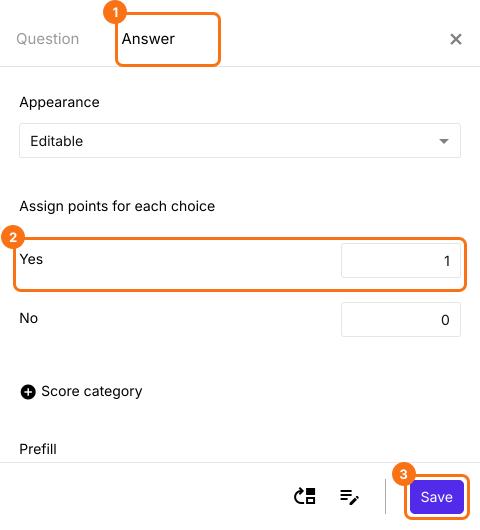
- Question settings page will be displayed. Click Answer. Assign points for the different answer choices and click Save.
Click on "Share" tab, copy the link and open it to fill the form. The Score changes as you answer. When you submit, you will see "Your total score is" followed by your score.
Summary
If you want to add up the answers in your dropdown questions, Google Forms cannot do it without a correct answer. With Formfacade, you assign points for the different answer choices and the score is calculated when a user fills the form. Create your form and complete the steps above.
Last updated: