How to add a verbal assessment based on the calculated score?

"I'm wanting to build a personality type quiz (relating to stress) in Google Forms"- Google Docs Editors Community

This is a common question from Google Workspace users building assessments in Google Forms. For example, you might run a happiness questionnaire and a number alone tells people very little, so each person needs a few words on what their score means and what to do next. Google Forms lets you write one confirmation message, so everyone sees the same words after they submit. You can work out the result in a Google Sheet or with a script, but people never see it on the form and someone has to keep that script working. With Formfacade, the default confirmation message is "Your total score is [score]" and you can customize this message or show conditional message based on score. Each person will read the message for their own score as soon as they submit. Even better, the form will have your own branding instead of Google's, so the result feels like it came from you.

Let's start. Create your form and follow the steps below.

Oxford Happiness Questionnaire

The Oxford Happiness Questionnaire can be used to measure the current level of happiness. This happiness questionnaire consists of 29 statements. The items are a combination of positively and negatively phrased statements and pertain to different areas of well-being. This ensures that the respondent takes time to carefully read each item before answering. The survey asks you to evaluate each statement and rate it according to how much you disagree or agree with the statement. It uses a 6-point Likert scale with 6 being the highest as "strongly agree".
For the purpose of this article, we will focus on how to interpret the results and show a verbal assessment based on the score. To learn how to calculate the score, refer to this help article

Interpreting the score, by Stephen Wright

1-2: Not happy. If you answered honestly and got a very low score, you are probably seeing yourself and your situation as worse than it really is. Try taking the Depression Symptoms test.
2-3: Somewhat unhappy. Try exercises like the Gratitude Journal & Gratitude Lists or the Gratitude Visit.
3-4: Not particularly happy or unhappy. A score of 3.5 would be an exact numerical average of happy and unhappy responses. Exercises designed to increase happiness have been tested in scientific studies and have been shown to make people lastingly happier.
4: Somewhat happy or moderately happy. Satisfied. This is what the average person scores.
4-5: Pretty happy. Satisfied. This is what the average person scores
5-6: Very happy. Being happy has more benefits than just feeling good. It is correlated with benefits like health, better marriages and attaining your goals.
6: Too happy. Yes, you read that right. Recent research seems to show that there is an optimal level of happiness for things like doing well at work or school, or for being healthy, and that being too happy may be associated with lower levels of such things.

How to assign points?

  • After you click "Create your form", name your form, click Create form and click Proceed on the page that opens.
  • You will land on the form's "Edit" tab. The "Assign points" dialog opens about 15 seconds later, so wait for it.

The tabs Edit, Preview, Share and Responses, with Edit marked
  • It asks "How do you want to set up scoring?". Select "Assign points manually" and click Proceed.
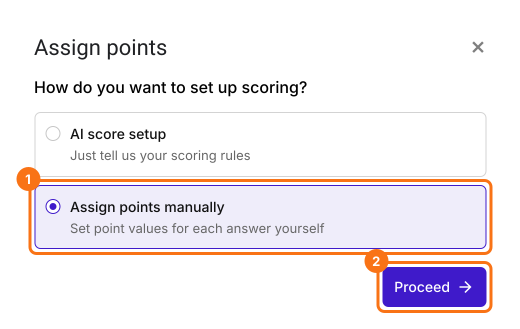
The Assign points dialog asking How do you want to set up scoring?, with Assign points manually and Proceed marked
  • Pick Multiple choice as the question type to score, assign points to its choices and click Next. The same points go to every multiple choice question in your form.
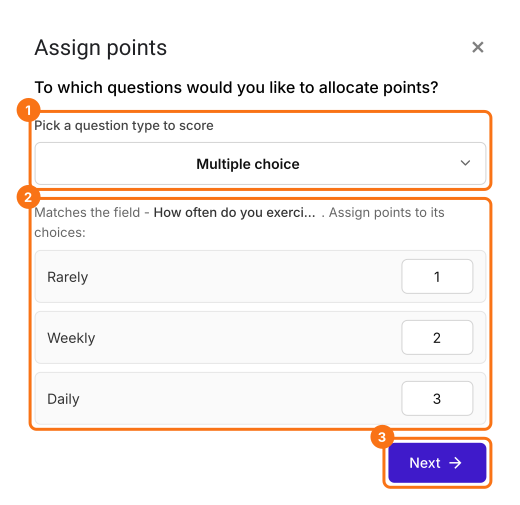
The step To which questions would you like to allocate points?, with Multiple choice picked, points for Rarely, Weekly and Daily and Next marked
  • It asks "How do you want to show the score?", with both options ticked. Click Next.
  • You're all set message will be displayed. Click the × to go back to the "Edit" tab.
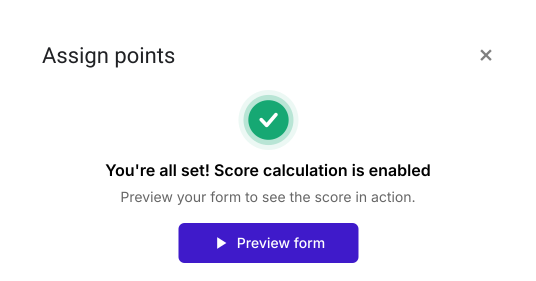
The Assign points dialog saying You're all set! Score calculation is enabled, with Preview form
Your form now has a Score question and the same points on every multiple choice question. The steps below give each question its own points.
  • Click on the question, then click on the gear icon
  • Question settings page will be displayed. Click Answer. Assign points for the different answer choices and click Save.
  • Do this for all the questions in your form

How to show conditional message based on score?

  • In the Edit page, scroll down to the end of the form and click on the gear icon on the last "After page" row, above the Submit button. It says "After page 1" on a form with one page. The panel can take a few seconds to open, so click once.
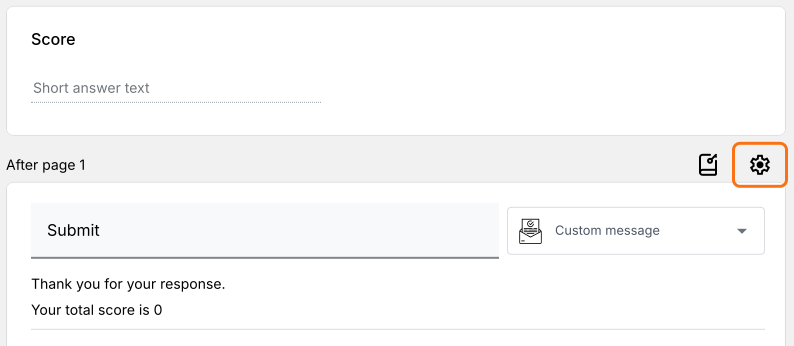
The Score question, then the After page 1 row with its gear marked, above the Submit card set to Custom message with the total score message
  • Button settings page will be displayed. Click On submit. By default, Show customized message for this button option will be selected.
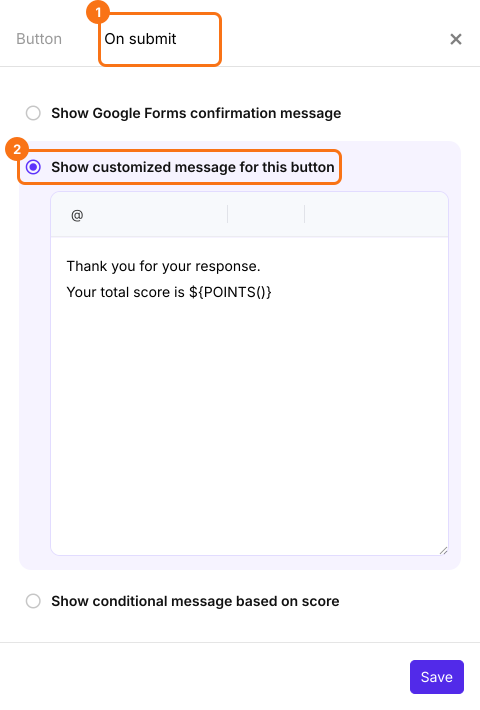
The On submit tab with Show customized message for this button selected and a message with the score, and On submit and that option marked
  • Select Show conditional message based on score. Select the score field. Click Create.
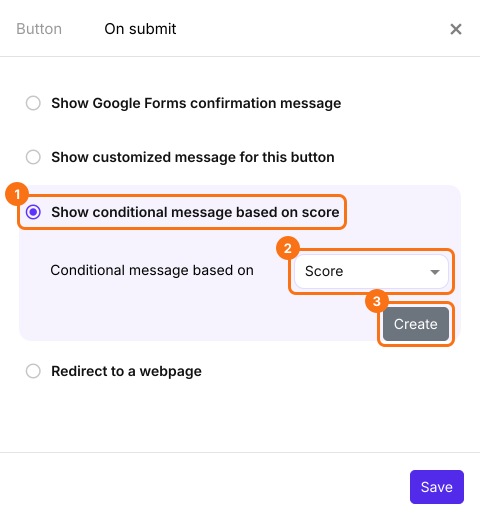
The On submit tab with Show conditional message based on score selected and Score chosen in the list and that option, the list and Create marked
  • Condition message settings page will be displayed. Click on the first condition to edit the condition and update the message.
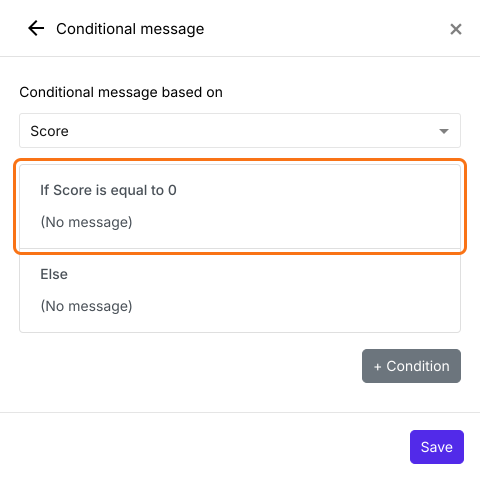
The Conditional message panel with If Score is equal to 0, (No message), marked above Else and + Condition
  • Update the condition, enter a customized message and click Save.
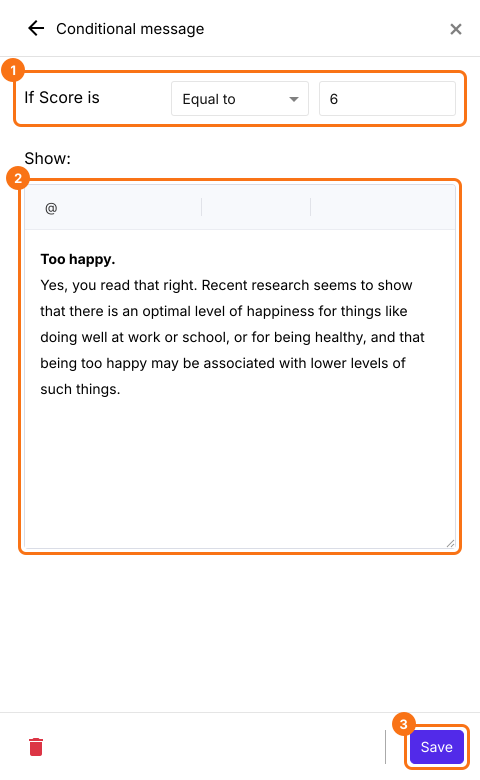
A condition set to If Score is Equal to 6 with the Too happy message under Show: and the condition, the message and Save marked
  • Click on + condition button to add another conditional message.
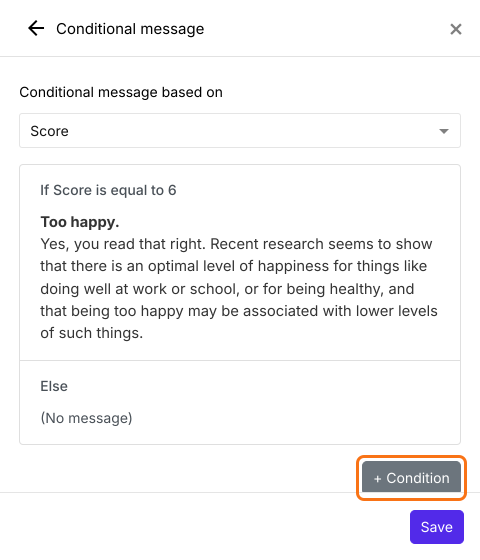
The list of conditions with If Score is equal to 6, the Too happy message and Else, and + Condition marked
  • Update the condition, enter a customized message and click Save.
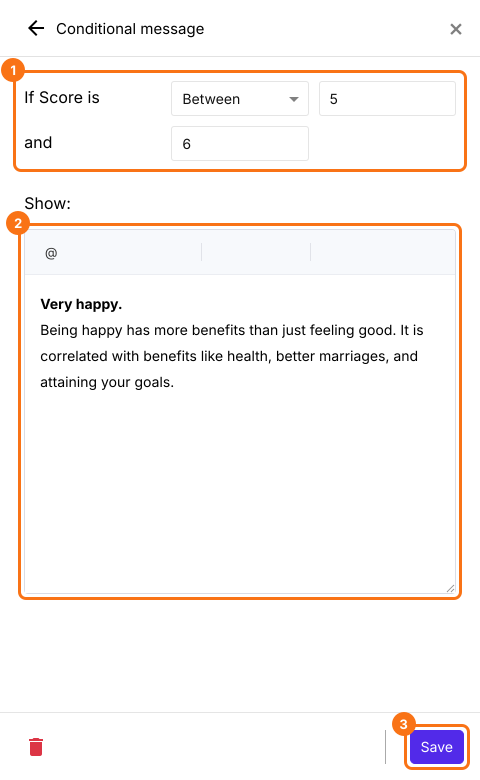
A condition set to If Score is Between 5 and 6 with the Very happy message under Show: and the condition, the message and Save marked
  • Once you have added all the conditional messages, click Save.
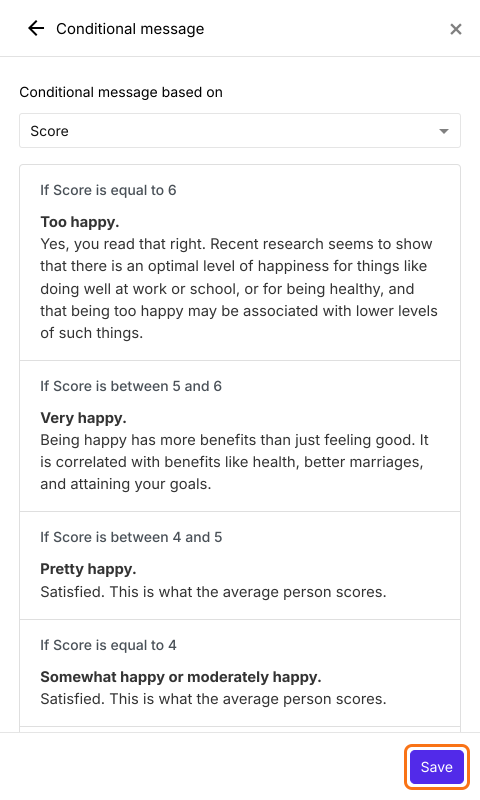
The list of conditions for scores of 6, 5 to 6, 4 to 5 and 4 with their messages and Save marked
  • You will see the summary of the conditions with the customized messages. Click Save to complete setup.
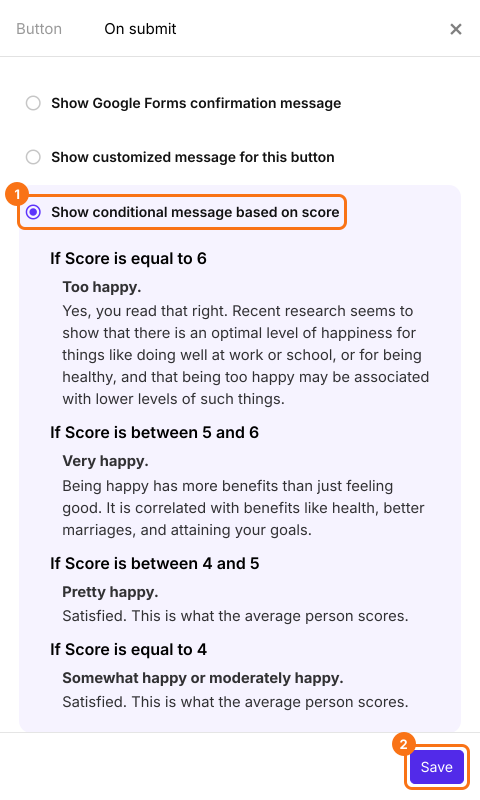
The On submit tab with the summary of the conditions and their messages under Show conditional message based on score and that option and Save marked
When a user fills the form and submits it, they will see the message for their score.
The message after submit: Very happy, in bold, then Being happy has more benefits than just feeling good. It is correlated with benefits like health, better marriages and attaining your goals.

How to send users to a different page based on score?
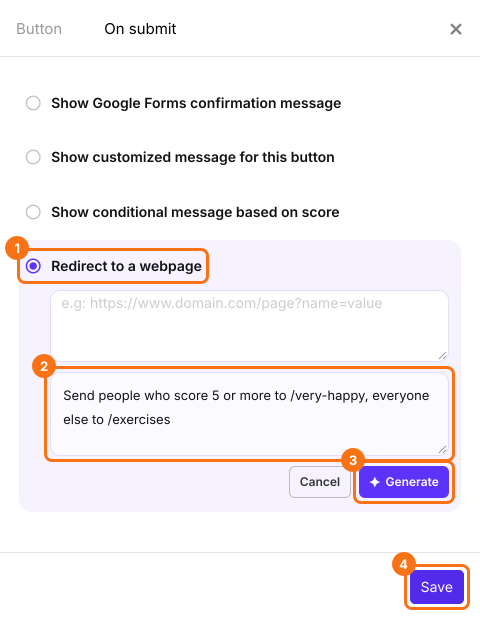
To send users to a different page based on the score instead of showing a message, click On submit, select Redirect to a webpage and click Try advanced redirects. Describe what should happen after submit, click Generate and click Save. Users will go to the page for their score.
The On submit tab with Redirect to a webpage selected and a rule typed in the advanced redirects box and that option, the box, Generate and Save marked

Summary

If you run a happiness questionnaire, a number alone does not tell people what it means and Google Forms shows everyone the same message. With Formfacade, you show a conditional message based on score and each person reads the message for their own score when they submit. Create your form and complete the steps above. If you have any questions, write to support.

Last updated:
