How can two people sign on one device?
"Our Parents and Athletes Signatures are required to sign waivers"- Google Docs Editors Community
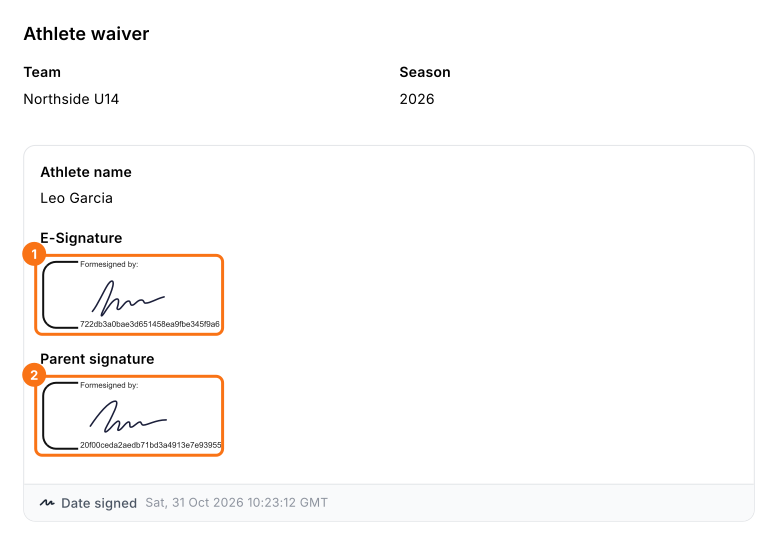
This is a common need for sports teams using Google Forms and 608 people on Google's forum have asked about it. For example, each athlete and a parent have to sign a waiver before the season starts. Google Forms has no signature question, a tick box isn't a signature and printing, signing and scanning means chasing paper from every family. With Formesign, you can add a signature field for each person and both sign on the same phone or tablet. Even better, both signatures are on the signed PDF.
Let's start. Create your form in Google Forms, then import it and follow the steps below.
1. Import your waiver
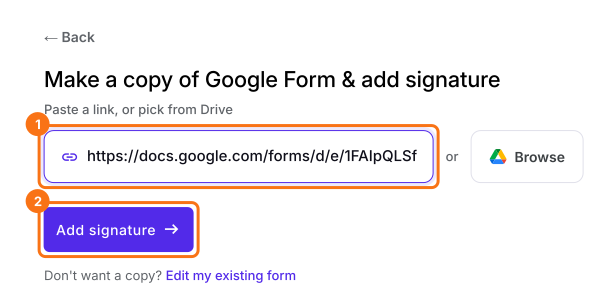
Publish your Google Form first or make one at form.new with an Athlete name question and click Publish. If the import page is not open yet, click Import Google Form. Paste its link (the form's address in your browser works) and click Add signature. Keep Simple signature, so both people draw straight away and click Next. Choose the question it goes after and click Next. On Your signing link is ready, click Edit form.
2. Add a second signature field
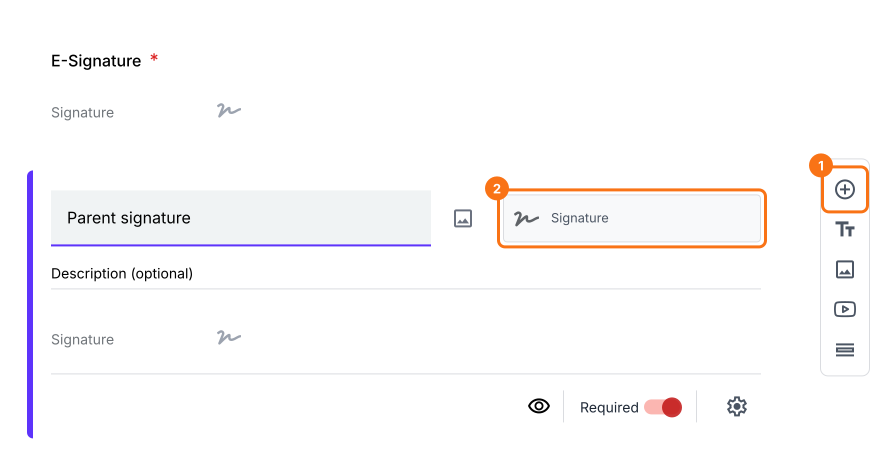
Click the E-Signature field, then the + button on the toolbar. Name the new question Parent signature, change its answer type to Signature and turn Required on.
3. Put the athlete's name on the record
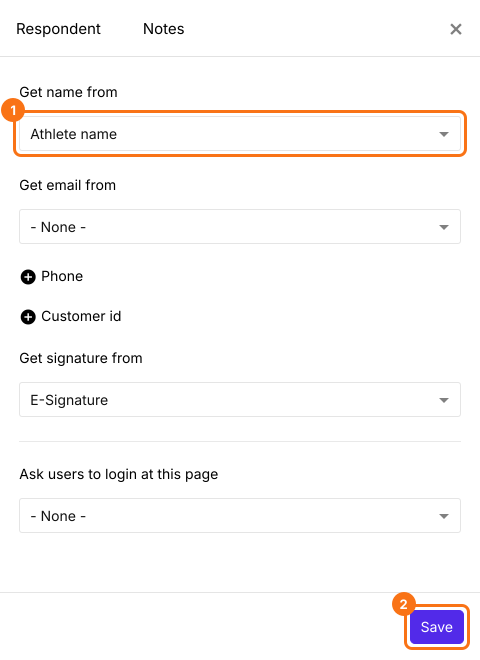
Click Configure key fields (the notebook icon) in the last After page row, set Get name from to Athlete name (or your own name question) and click Save. Otherwise the signed PDF says Anonymous.
4. Sign together
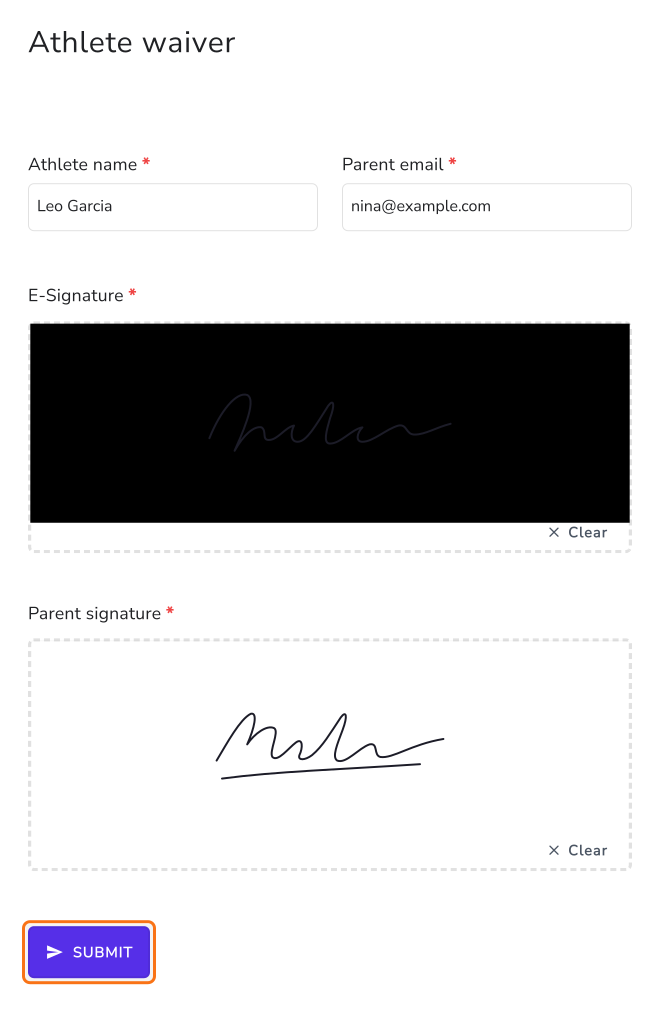
Click SHARE, copy the link and open the form on one phone or tablet. The athlete draws in their box and hands it over, the parent draws in theirs and one of them clicks SUBMIT.
5. Both signatures are on the signed PDF
Open SIGNED PDF and click the card. If you do not see that tab, reload the page. The PDF shows both signatures.
Summary
If each athlete and a parent have to sign a waiver before the season, a tick box isn't enough and printing and scanning means chasing paper from every family. With Formesign, you add a signature field for each person, both sign on the same phone or tablet and you get one signed PDF. Create your form in Google Forms, then import it and complete the steps above.
Last updated: