How to give each signer their own section?
"Google form to be completed by several people"- Google Docs Editors Community
This is a common need for Google Forms users when one form has to pass through more than one person. For example, you run cricket player registration, each player fills in their details and then the team manager has to add the team and sign. A Google Form takes one person's answers at a time, so you end up forwarding them by email or copying them into a second form. With Formesign, you can give the player and the team manager their own part of one form and each signs only theirs. Even better, the team manager can read the player's answers but can't change them.
Let's start. Create your form and follow the steps below.
1. Add a signer for each person
- Click on Create your form, click Enter your form name, type Player registration and click Generate. It takes about a minute.
- Check the outline and click Proceed.
- You land on the EDIT tab, where the Add eSignature dialog says Your signing link is ready. Close it.
- Click the pencil on the Signature workflow card.
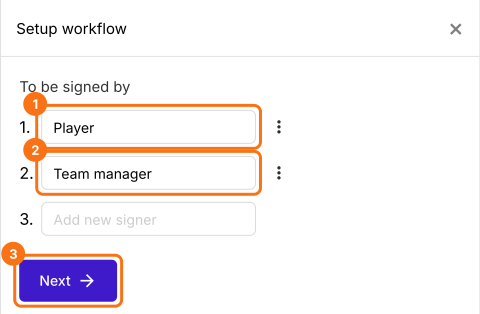
- The AI picks the signers from your form's name, so in Setup workflow, type over them so that they read Player and Team manager, delete any others from their three dots and click Next.
- Close the Your signing link is ready dialog.
- Then click Configure key fields (the notebook icon) in the last After page row and check Get name from and Get email from. They can start on the wrong person and the request email and the certificate use them, so set them to the first signer and click Save.
2. Open the team manager's block
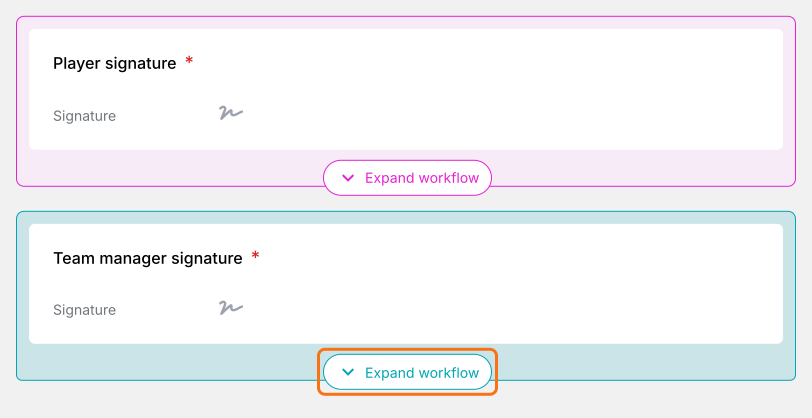
Reload the page, because the blocks keep the old names until you do. In the EDIT tab, each signer has a colored block. Click Expand workflow on the team manager's.
3. Add their questions
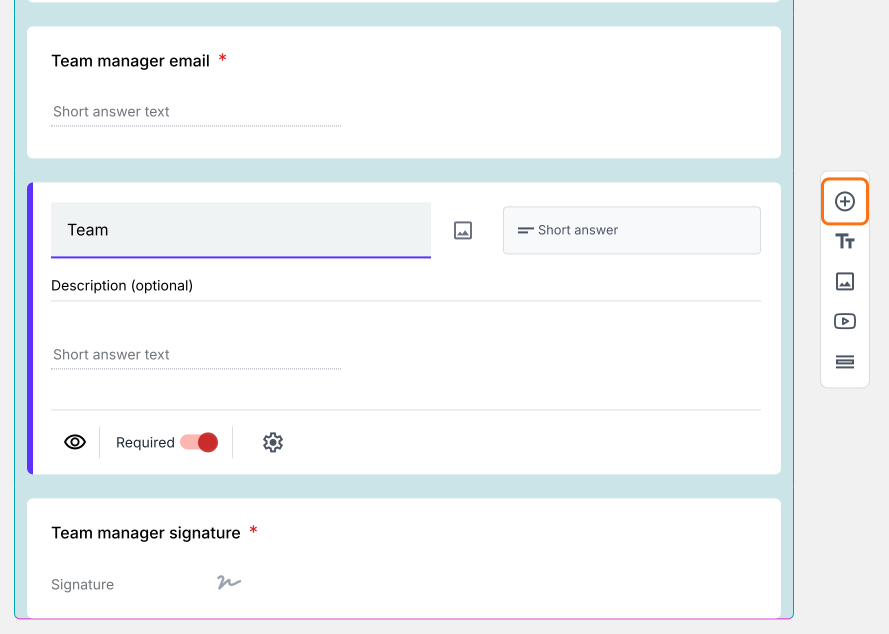
Click a field in the block, then the + button on the toolbar at the right. Type the question, such as Team, then click on another question. Don't press Tab, which can swap your words for a suggestion. Each signer starts on Google Sign-in. If someone has no Google account, click their signature field and click Not required beside Verify identity.
4. Each person fills only their part
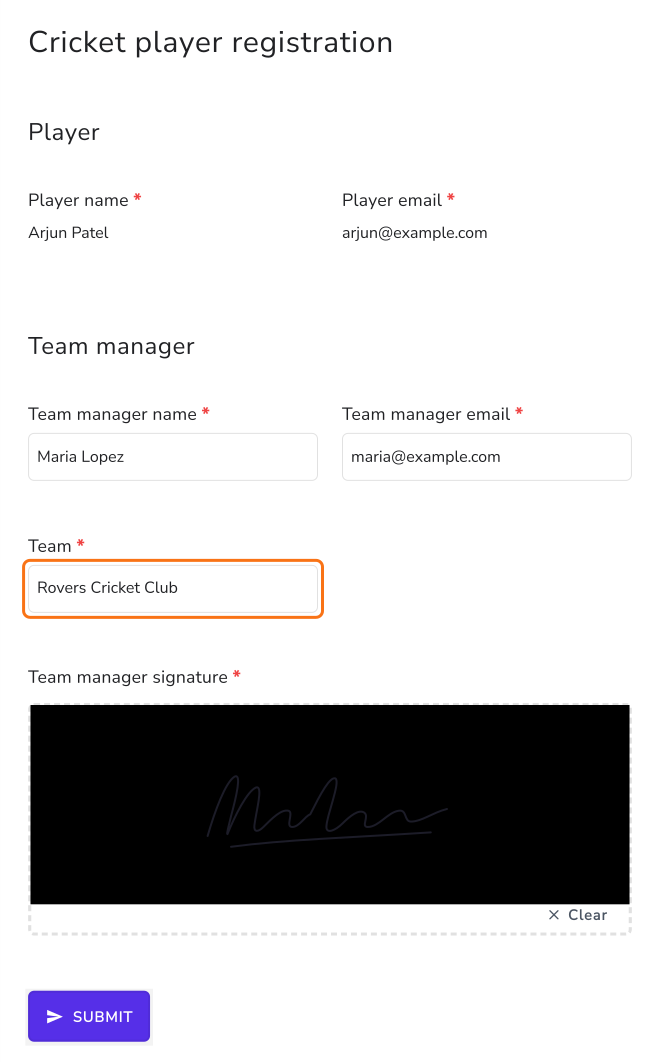
Click SHARE, click Copy and send the link to your players. After signing, the player enters the team manager's email and clicks Proceed. The team manager clicks Review & sign in their email and reads the player's answers, which they can't change. They type the team, sign and click SUBMIT.
Summary
If a player's registration also needs the team manager's details and signature, forwarding answers or keeping a second form means retyping and chasing. With Formesign, one form has a part for each person. The player fills in theirs and signs, the team manager adds the rest and you get one signed PDF. Create your form and complete the steps above.
Last updated: